
In short
The qStom Help plugin adds a »Help« tab to the right edge of the WordPress admin and the Bricks builder. Clicking it opens a list of guides for the screen you are on – for example, when editing a post you get guides for posts, images and SEO. Guides open in a new window, so you don’t lose the work you have open.
- Click the Help tab at the right edge of the screen.
- A panel opens with guides for this screen.
- Click a guide – it opens in a new tab.
- Close the panel with ×, the Esc key or by clicking outside it.
1. The tab and the help panel
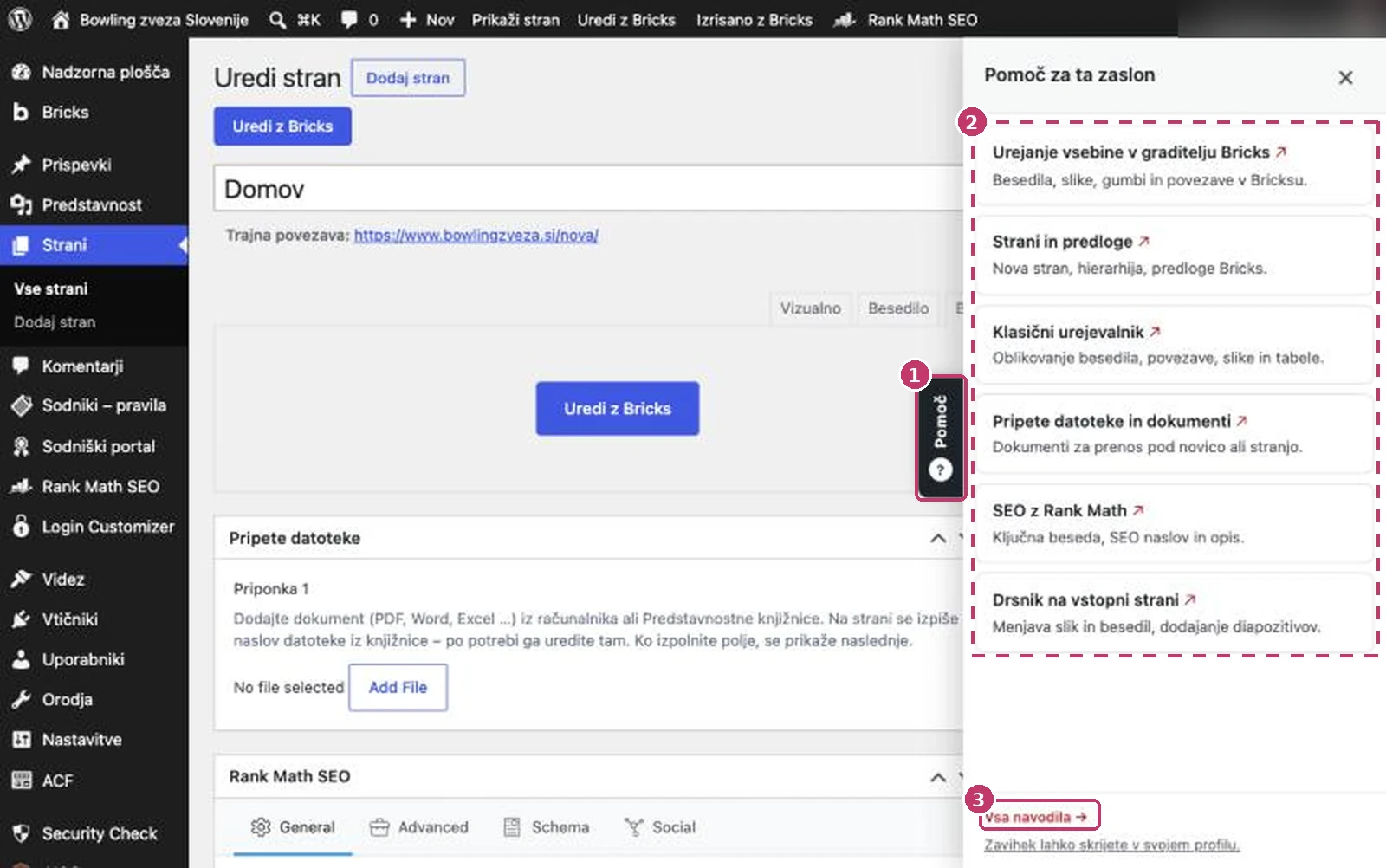
The panel shows up to six guides. The selection adapts to the screen and to what is installed on your site (Bricks, Rank Math, Classic Editor, media folders …). Examples:
- Dashboard – admin basics and clearing the cache.
- Editing a post – posts, Classic Editor, images, attached files, SEO.
- Editing the home page – slider, featured content, editing in the builder.
- Media – images and files, folders, preparing images.
- Bricks builder – editing content, slider, featured content.
Guides labelled Site guide describe features built only for your website (e.g. a custom portal or forms). They open in the admin and are not published publicly.
2. Enabling and settings (administrator)
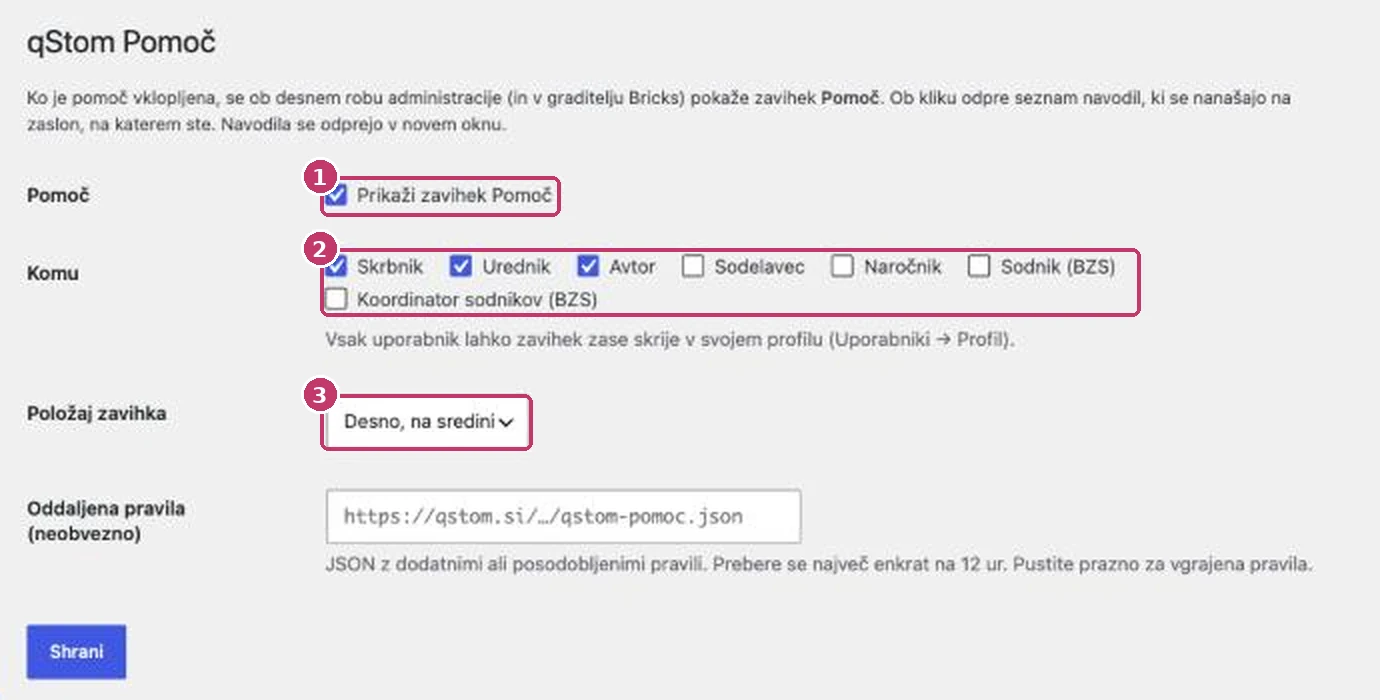
- Open Settings → qStom Pomoč.
- Tick Show the Help tab.
- Choose the roles that should see the tab (by default administrator, editor and author).
- Choose the tab position: right, middle or right, bottom.
- Click Save.
3. Hiding the tab for yourself
If you don’t need the tab, hide it just for yourself: Users → Profile, section qStom Pomoč, tick Hide the Help tab for me and click Update Profile. Other users still see it.
4. New and updated guides
Once a day, on the first admin login, the plugin checks qstom.si for new or updated guides for WordPress, the theme and the plugins your website uses. Guides for plugins you don’t have are not shown, and security alerts only appear if an affected version is installed.
- When there is something new, a notice with the list of guides appears in the admin. Click Mark as read to hide it.
- New guides are labelled New or Updated in the Help panel.
- The All guides link at the bottom of the panel opens the list of all guides for your website, grouped by topic, with search.
- Titles, links, sections and which guides appear on which screen are downloaded from qstom.si, so the plugin does not need updating when guides are added or renamed.
- The plugin updates itself: a new version is installed automatically or shown among the usual WordPress updates (you can turn automatic updates off in the settings).
- Manual check: Settings → qStom Pomoč → Preveri zdaj / sinhroniziraj (Check now / sync). The time of the last check is shown there too.
In the settings you can turn off the daily check or the notice, and include general guides (SEO, email, domains).
5. When you can’t find a guide
- Click All guides at the bottom of the panel – it opens the list of all guides for your website.
- You can also search the guides at qstom.si/en/support.
- If there is no guide for your issue, email us at podpora@qstom.si and we’ll add one.