
In short
You can publish downloadable documents under a post or page – calls, rules, results or forms. Add the files to the »Attached files« fields below the editor and the website lists them automatically with type, size and date. There is no need to format the list by hand, so it looks the same everywhere.
- Open the post or page for editing.
- Below the editor find the Attached files box (Slovenian admin: Pripete datoteke).
- At Attachment 1 click Add File and choose or upload a document.
- For the next document Attachment 2 appears automatically, then 3 …
- Click Update and check the list on the page.
1. The »Attached files« fields
The box is below the content editor for posts and pages. Only the next empty field is shown, so the box stays short even with many attachments (up to 25).
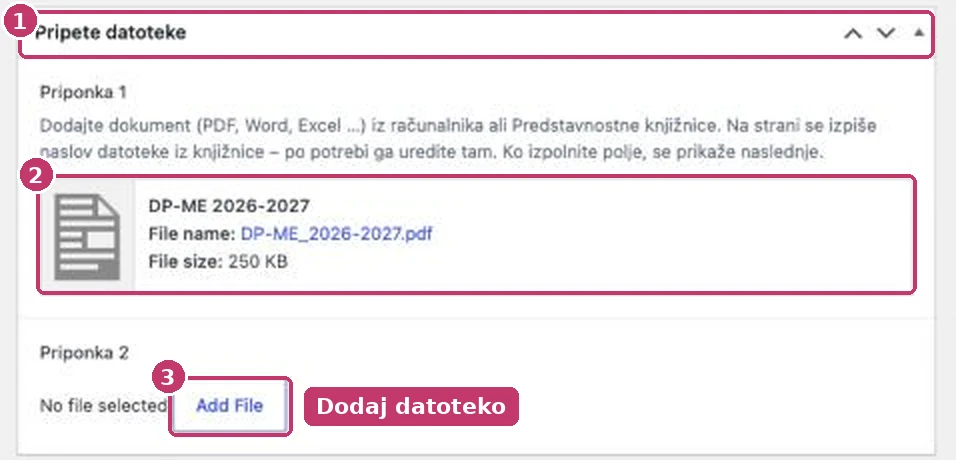
- You can upload a file from your computer or choose it from the media library.
- Hovering over an added file shows icons to edit and remove it. Removing only takes the file off the page; it stays in the library.
- The order on the page follows the order of the fields (Attachment 1, 2, 3 …).
2. How the list appears on the page

- The name is the file’s title in the media library. To change it, edit the title in the library (Media → Library → click the file → Title).
- Type (PDF, DOC, XLS …), size and date are shown automatically.
3. Good practice for documents
- Use PDF for documents that people only read; Word and Excel only for forms to fill in.
- Use a descriptive file name without spaces or special characters:
call-national-championship-mixed-teams-2026-2027.pdf. - Give the file a readable title in the library: »Call – national championship, mixed teams 2026/2027«.
- Keep PDFs small (a few MB at most). Save scanned documents at a lower resolution.
- When a new version is released, upload the new file and replace it in the field; delete the old file only when it is no longer used anywhere.
More on uploading and the library: Images and files and Folders in the media library.