
In short
Folders in the media library help you sort images and documents by topic (e.g. News, Documents, Gallery, Season 2026/27). Files stay where they are on the server – a folder is a label you use to filter the library quickly. Folders work in the library, in the image picker and in the Bricks builder.
- Open Media → Library.
- In the All folders drop-down choose a folder – only its files are shown.
- Files you upload are saved into the selected folder automatically.
- Move existing files in list view with the bulk action Move to folder.
- Add and edit folders in Media → Folders.
1. Filtering the library by folder
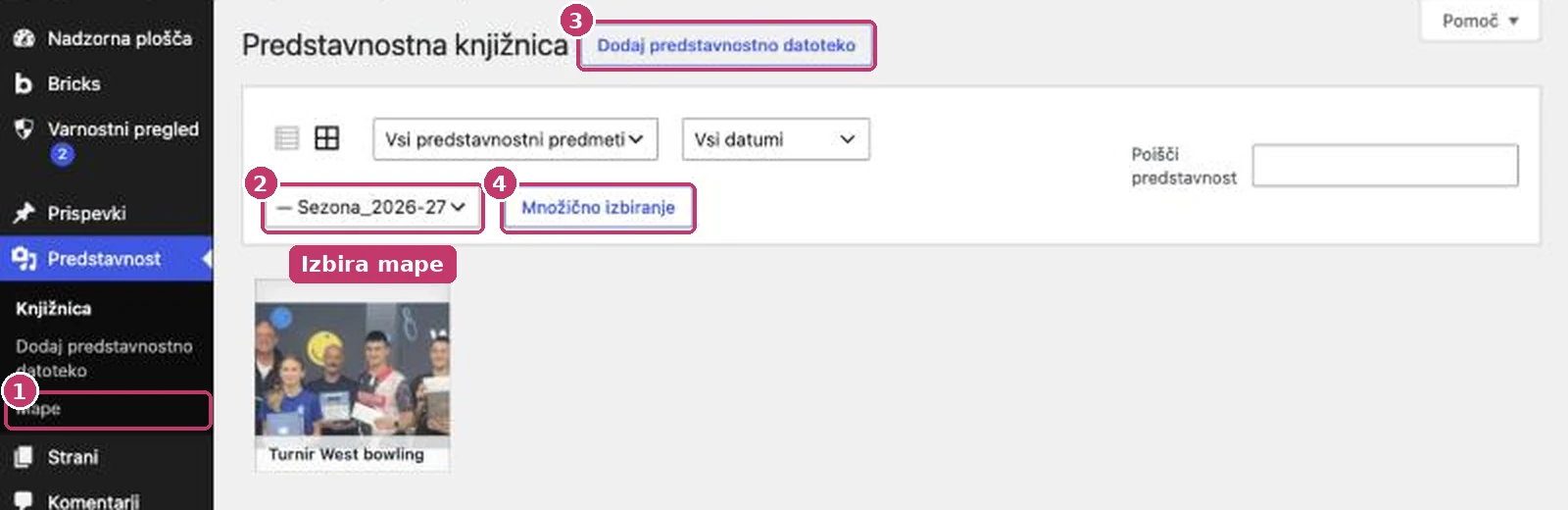
- All folders – shows all files.
- No folder – files not sorted yet. Handy for tidying up.
- A folder name with a dash (e.g. — Sezona_2026-27) is a subfolder.
The same filter is available in the Add Media window when editing a post and in the Bricks builder when choosing an image.
2. Uploading into a folder
First choose a folder in the filter, then click Add Media File and upload. The files are saved into the selected folder. You can also change a single file’s folder in its details (Folder field).
3. Moving several files at once
- Switch the library to list view (lines icon at the top left).
- Tick the files.
- In Bulk actions choose Move to folder: … or Remove from folder.
- Click Apply. The Folders column shows the new folder.
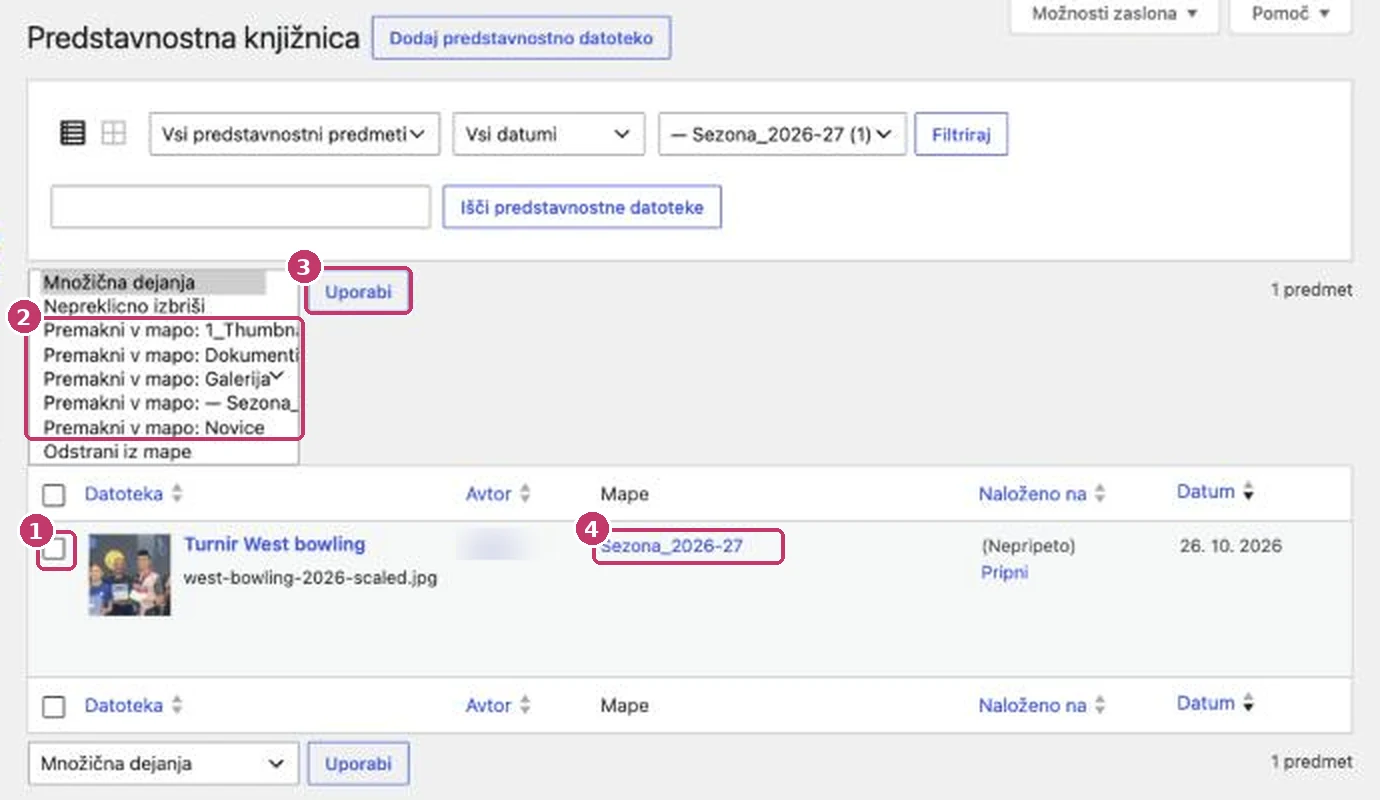
Careful: the same list contains Delete permanently. Check which action is selected before you click Apply.
4. Adding and editing folders
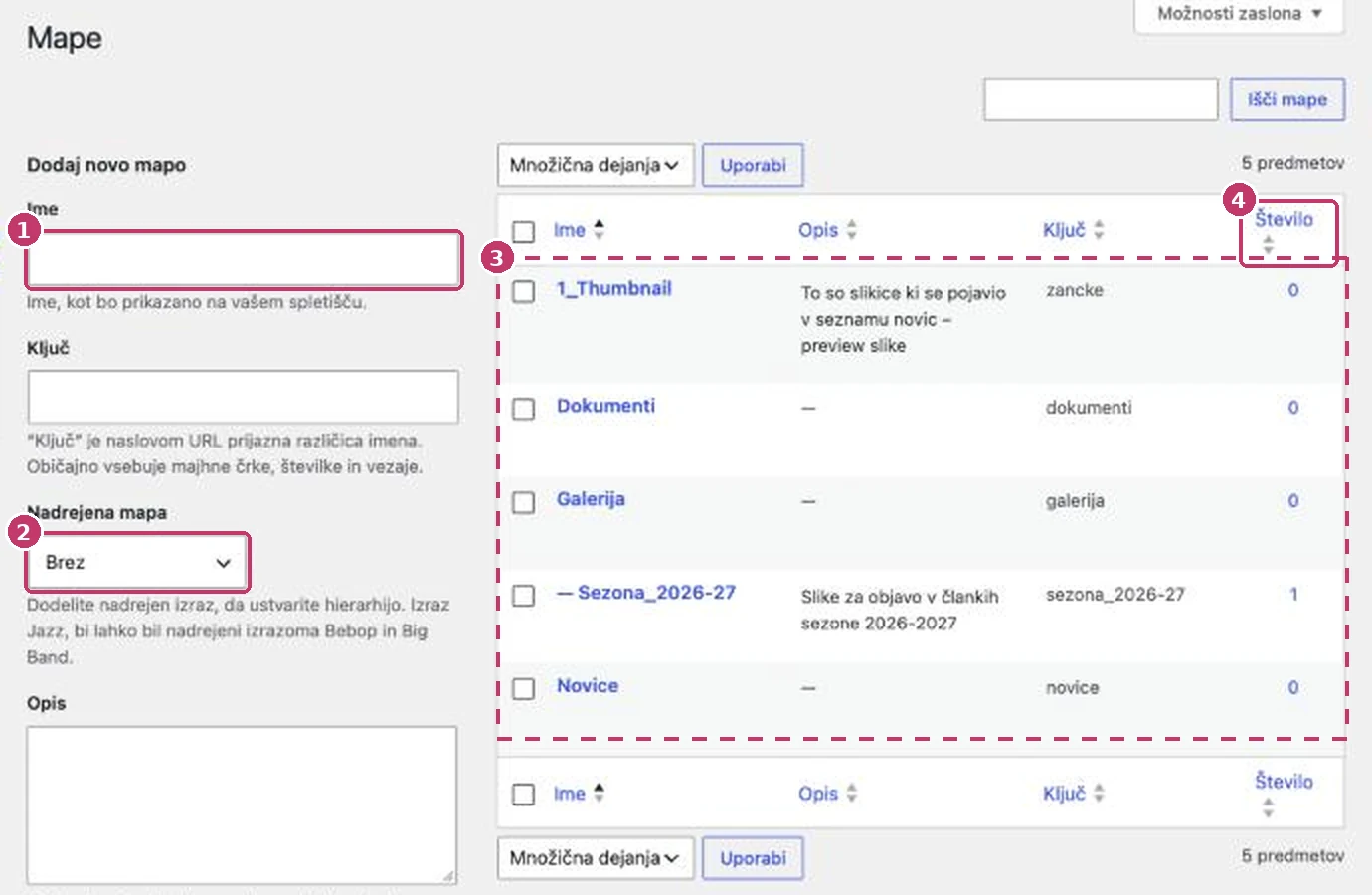
- Add a folder on the left: enter a Name, optionally choose a Parent folder and click Add new folder.
- Rename a folder by hovering over its name → Quick edit.
- Deleting a folder doesn’t delete the files – they become »No folder«.
- We recommend a few clearly named folders (by content type and season) rather than many subfolders.