
OVERVIEW
Web browsers store data on your device (computer, tablet, phone, etc.) to load web content faster.
But what if you need to clear this cache? Here’s how to do it in all the most popular browsers.
The browser cache also stores a copy of DNS records, which shortens the time it takes to reach a website’s IP address. We often clear the system cache but forget to clear the browser’s DNS cache.
Do browsers also cache images and design elements?
Yes! Web browsers keep a copy of images and design elements such as .css style files and other files. This mainly speeds up finding the website’s individual elements and loading the whole website faster. But in many cases, simply clearing the system cache by reloading the page (reload/refresh) doesn’t solve the problem of accessing the updated website. The reason may be an outdated or corrupted browser cache in local files.
How you clear the cache depends on the browser. To keep things simple, we explain the steps separately for Chrome, Edge, Firefox, Safari and Opera.
How to clear the cache in Google Chrome
The option to clear the DNS cache in Chrome isn’t in Settings.
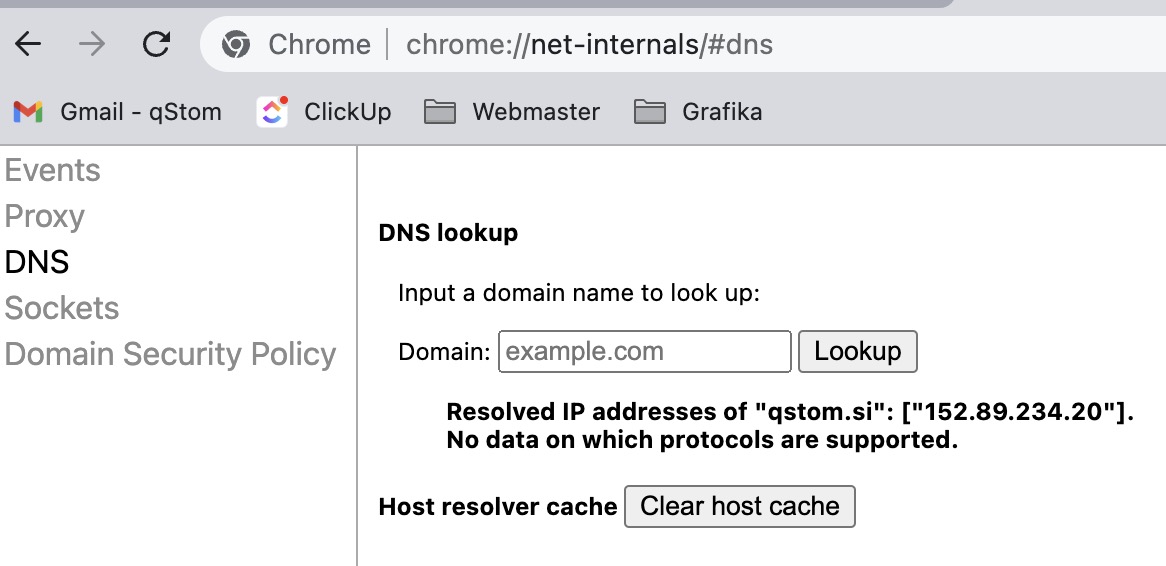
Here’s how to open and clear the DNS cache in Chrome:
- Press Ctrl + T to open a new tab in Chrome.
- Enter chrome://net-internals/#dns in the address bar and press Enter.
- Enter the domain you want to clear the DNS cache for. It shows the locally stored IP address. To clear/refresh it, click “Clear host cache” to delete the local cache.
How to clear the cache in Microsoft Edge
In 2020, Microsoft Edge moved to Chromium to improve stability and performance. As it uses the same engine as Chrome, the steps for clearing the DNS cache are similar:
- Open a new tab in Edge.
- Click the address bar and enter edge://net-internals/#dns.
- Press Enter to open the DNS settings page.
- Click “Clear host cache” to empty Edge’s DNS cache.
How to clear the DNS cache in Mozilla Firefox
Mozilla Firefox doesn’t use the Chromium engine, so clearing DNS cache entries works differently from Chromium-based browsers:
- Start Firefox and open a new tab.
- Enter about:networking in the address bar and press Enter.
- The Networking section opens. In the left sidebar, click DNS.
- You’ll see a list of all DNS cache entries stored in Firefox. Click “Clear DNS Cache” to remove them all.
How to clear the DNS cache in Safari
Safari hides the option to empty the DNS cache in the developer settings, so you first need to turn on the Develop menu before you see the option. Here’s how:
- Go to the Safari menu bar, click Safari and then Settings.
- Select “Show Develop menu in menu bar” and close the advanced settings window.
- Go back to the Safari menu bar and click Develop.
- In the drop-down menu, click “Empty Caches”. This empties the browser’s DNS cache.
How to clear the DNS cache in Opera
Opera is also Chromium-based and has the same internal page. To clear Opera’s DNS cache:
- Press Ctrl + T to open a new tab in Opera.
- Enter opera://net-internals/#dns in the address bar and press Enter.
- The DNS page opens. Click “Clear host cache” to remove the DNS cache entries.
Keep your browser’s DNS cache fresh
A corrupted DNS cache can break access to your favourite websites. In Chromium-based browsers, the command for opening and clearing DNS cache entries is the same. If you use Safari or Firefox, the methods are a little different. Don’t forget to clear browser cookies and site data if you still have trouble accessing a website.