OPENCART ADMIN – PRODUCTS
Products in an OpenCart store
Products are the core and most important part of your online store, so it’s very important to present them well to your customers. Before you start adding products, gather all the information about the products you’ll add to the store. The more information you give visitors, the better informed they’ll be and the more sales you’ll make.
Catalog: Products
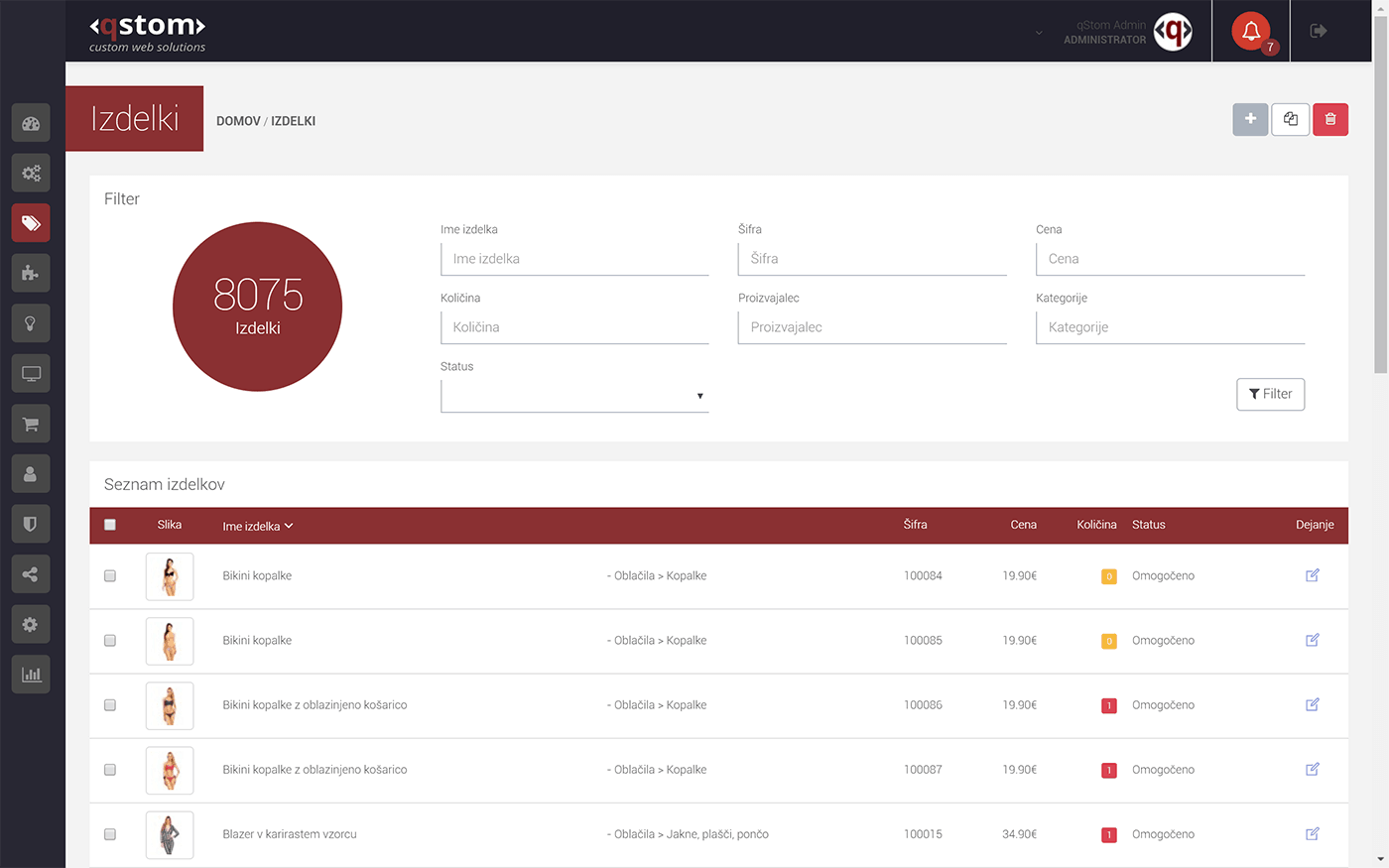
The product list (Catalog > Products) shows all existing products in your online store. Each product in the list shows an image, product name, model, price, category, quantity and status. In the last column, “Action”, there’s a blue button for editing the product. Clicking the box in a product’s first column selects that product and all its information. Once a product is selected, you can duplicate it with the “Copy” button (to make manual entry of similar products easier) or remove it from your online store with the “Delete” button.
To find a specific product, use one filter or a combination of filters at the top of the list.
To add a new product, click “Add New” and you’ll be taken to the form for adding a new product.
Adding a new product
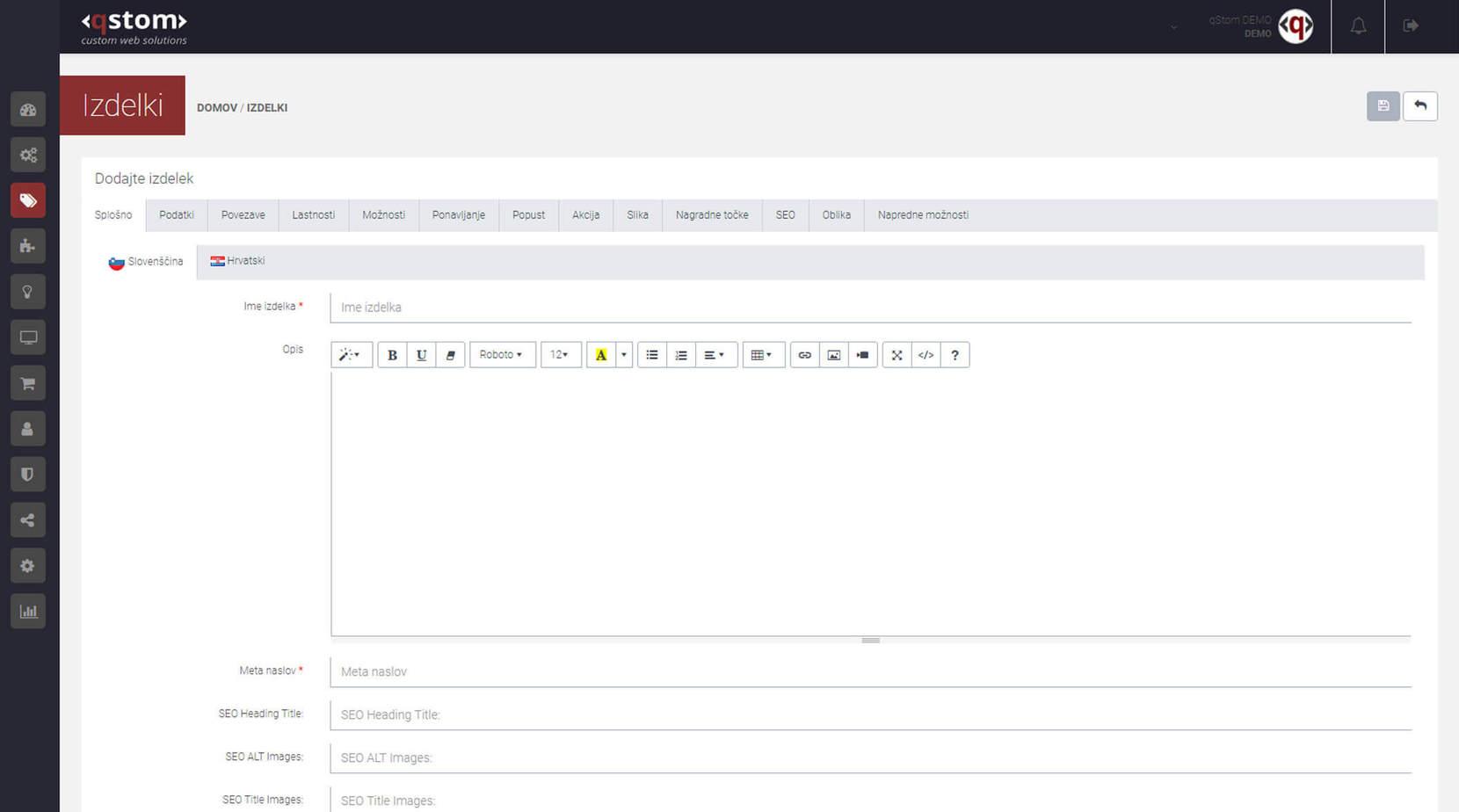
In the admin, under Catalog > Products, you can manage the products in your online store. The “Add New” button at the top right takes you to the form you need to fill in to add a new product.
As with categories, the product form has several tabs:
General
Fill in the “Product Name” and “Description” fields.
- Product Name is the name shown to visitors on category pages, in search results, at checkout, etc.
- Description is the text users see in the description tab of each product in the online store. It lets you describe the product in detail and add rich content such as links, videos, etc.
- Meta tags and descriptions are for the product’s SEO. Meta Tag Title is the title of the product page (Page Title) that search engines (Google, Yahoo, etc.) show in their search results. SEO Heading Title is the heading shown as the product name on the product page (if you want the detailed view to use a different name from the Product Name field). SEO ALT Images lets you enter the image ALT text, shown if the image can’t be displayed. SEO Title Images is the image title indexed by search engines. Meta Tag Description is a description of up to 160 characters that search engines show below the page title in their results. Meta Tag Keywords have been meaningless since Google’s latest Penguin algorithm update, so you no longer need to fill them in. Tags are keywords shown below the product description that link to other products with the same keywords.
Data
Set the product’s basic properties.
- Image: The product’s featured (main) image.
- Model: A unique product code combining letters and numbers (required).
- SKU: Stock keeping unit.
- UPC: Universal Product Code.
- EAN: European Article Number.
- JAN: Japanese Article Number.
- ISBN: International Standard Book Number.
- MPN: Manufacturer Part Number.
- Location: Where the product is physically located.
- Price: Set the product price. Enter the price without VAT and use a full stop (.) as the decimal separator!
- Tax Class: Choose the tax class from the drop-down menu.
- Quantity: Enter how many products are available. In the “Low stock” field, enter the value at which the stock indicator turns yellow. In the “In stock” field, enter the value at which it turns green. If the product can only be ordered “on request”, tick the box after this field.
- Minimum Quantity: The minimum quantity of the product per order.
- Subtract Stock: Set whether the online store automatically subtracts the product’s stock. (For example, if you have 100 books for sale and customers buy 2, subtracting stock changes your quantity of that product to 98.)
- Out Of Stock Status: Choose the product’s status when it’s out of stock.
- Requires Shipping: Choose “Yes” if the product needs shipping, or “No” if it doesn’t.
- SEO is the URL you want for the product. This field is for optimising the page for search engines such as Google, Bing and Yahoo. The URL must be unique and mustn’t contain special characters or spaces!
- Date Available: The date from which the product will be on sale.
- Dimensions: Enter the product’s size.
- Length Class: Set the units for the product’s size.
- Weight: Enter the product’s weight.
- Weight Class: Set the unit for the product’s weight.
- Status: The product can be enabled or disabled. A disabled product can be edited in the admin but isn’t visible to users in the online store.
- Sort Order: Products are shown alphabetically in categories. If you give products numbers in this field, they’re sorted numerically from the lowest to the highest number.
Links
Set the product’s relationships with categories and other products.
- Manufacturer: Assign the product a manufacturer or brand, shown with the details on the product page. It also lets customers search and list products by manufacturer or brand. To assign one, you first need to create it under Catalog > Manufacturers. To assign a manufacturer, start typing its name in the field and choose it from the list.
- Categories: Choose the categories (you can choose several) to assign the product to. To assign a category, you first need to create it under Catalog > Categories. To assign one, start typing the category name in the field and choose it from the list.
- Filters let customers filter products within a category by predefined parameters. To assign filters to a product, you first need to create them under Catalog > Filters. To assign filters, start typing the filter name in the “Filters” field and choose them (you can choose several) from the list.
If you manage several stores on different domains from one admin, choose here which store the product appears in.
- Downloads: If the product is a file the customer can download, choose the file included with the product. To assign downloadable files, you first need to create and upload them under Catalog > Downloads. To assign files, start typing the file name and choose them (you can choose several) from the list.
- Related Products are products shown on the product page in the “Recommended” section that might interest a potential customer. To assign related products, start typing the product name in the field and choose them (you can choose several) from the list.