
Logging in to the OpenCart store admin
You’ve been given a URL for logging in to the admin panel. When you reach the admin login page, enter your login details.
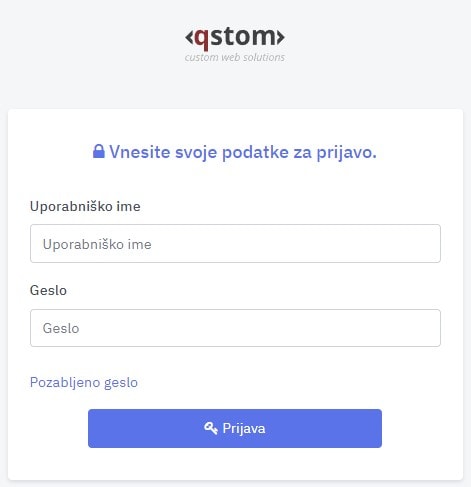
Once you’ve entered your username and password correctly and clicked the login button, you’ll be taken to the admin home page.
The dashboard is the first thing you’ll see when you log in to the admin. Its main job is to show the state of your store, i.e. how well your online store is doing. The page has 3 parts that help you understand the statistics collected about your online store.
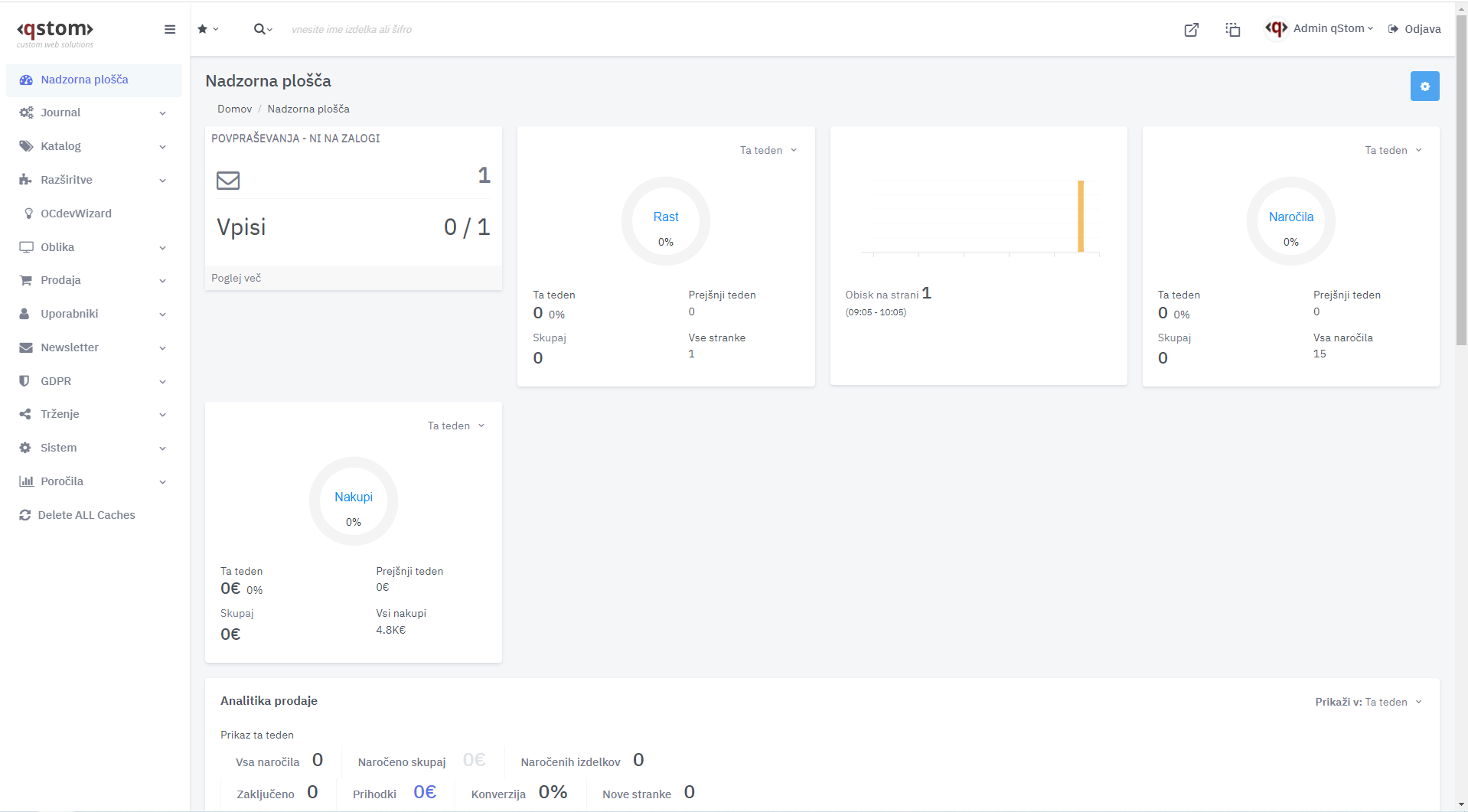
Order and customer data:
Shown in four tiles:
- 1. total number of orders,
- 2. total value of ordered products,
- 3. number of all customers,
- 4. number of customers currently logged in.
You can see the details for each tile by clicking the “View more” link.
Statistics and analytics:
This data shows orders by customer location (map) and time period (chart).
When you hover over a country, the system shows order details for that country. Zoom in on the map to help (click the “+” icon).
The chart on the right shows sales and order analytics for the selected period. Choose the period by clicking the calendar icon in the top right corner above the chart.
Activity data:
Activity on the website is shown in the Recent Activity and Latest Orders tables.
Recent Activity shows users along with the type of activity and the time it took place.
Latest Orders contains data on the latest orders and links to the details of each order.
Shortcuts
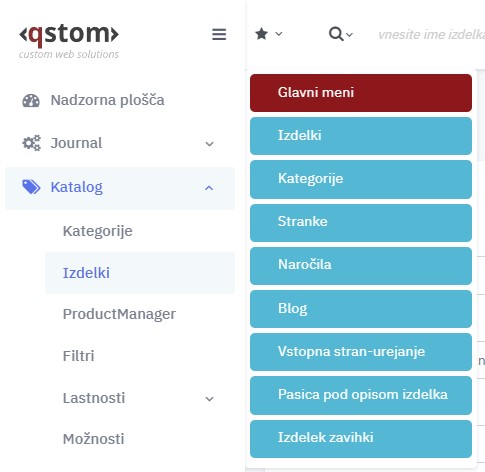
After logging in to your website’s admin, you’ll notice a small star icon at the top left. If you hover over it, a quick menu with shortcuts opens. Here you can quickly reach the settings and editing screens you use and need most. If you choose, say, “Products” in this drop-down menu, you’ll be taken to the page for adding and editing products. This way you don’t need to look for these settings deeper in the admin menu on the left – in this case, Catalog > Products.
Search
Your website’s admin has a built-in search at the top of the admin page, for quickly searching content. When you move to the magnifying glass icon, a menu with different search target options appears. You can search for a product, order, user/customer or category name.
