
Blog
With the Journal 3 theme, you can write and edit blog posts and content pages directly in your online store. This section is useful when you want to tell your website visitors about a new product or publish news, interesting facts, articles, etc.
Creating blog content
For quick access to editing and adding posts in the “blog” section, we’ve added a “Blog” button to the shortcuts menu (the star icon at the top left). You can also go to the same page by choosing Journal > Blog > Posts.
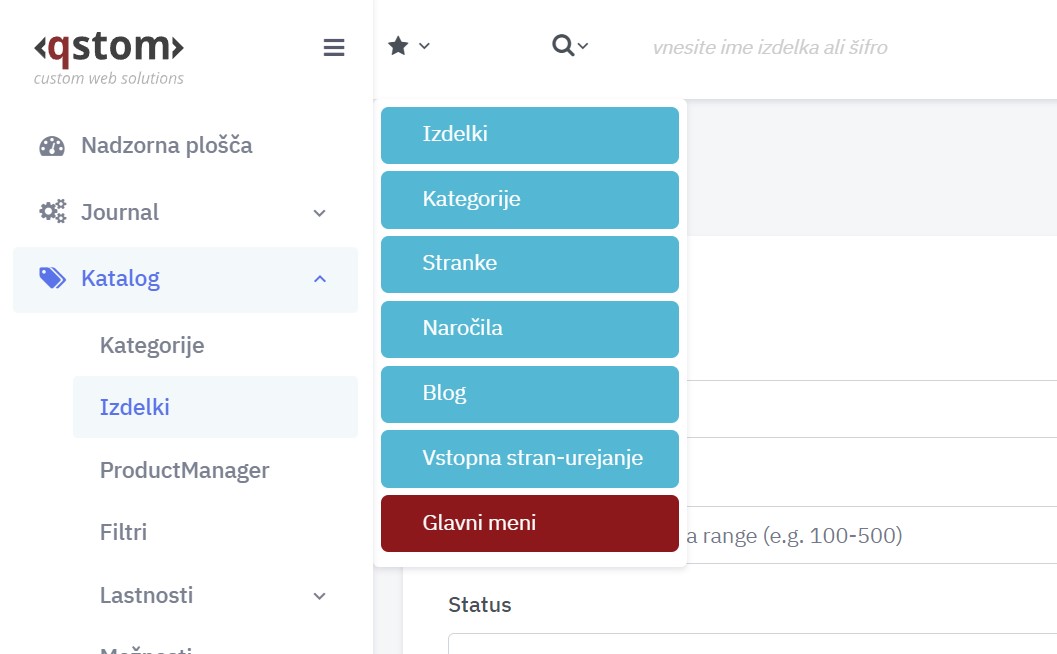
You’ll be taken straight to the page for adding new posts. Click the “+” icon at the top right to open a window with the settings for a new post.
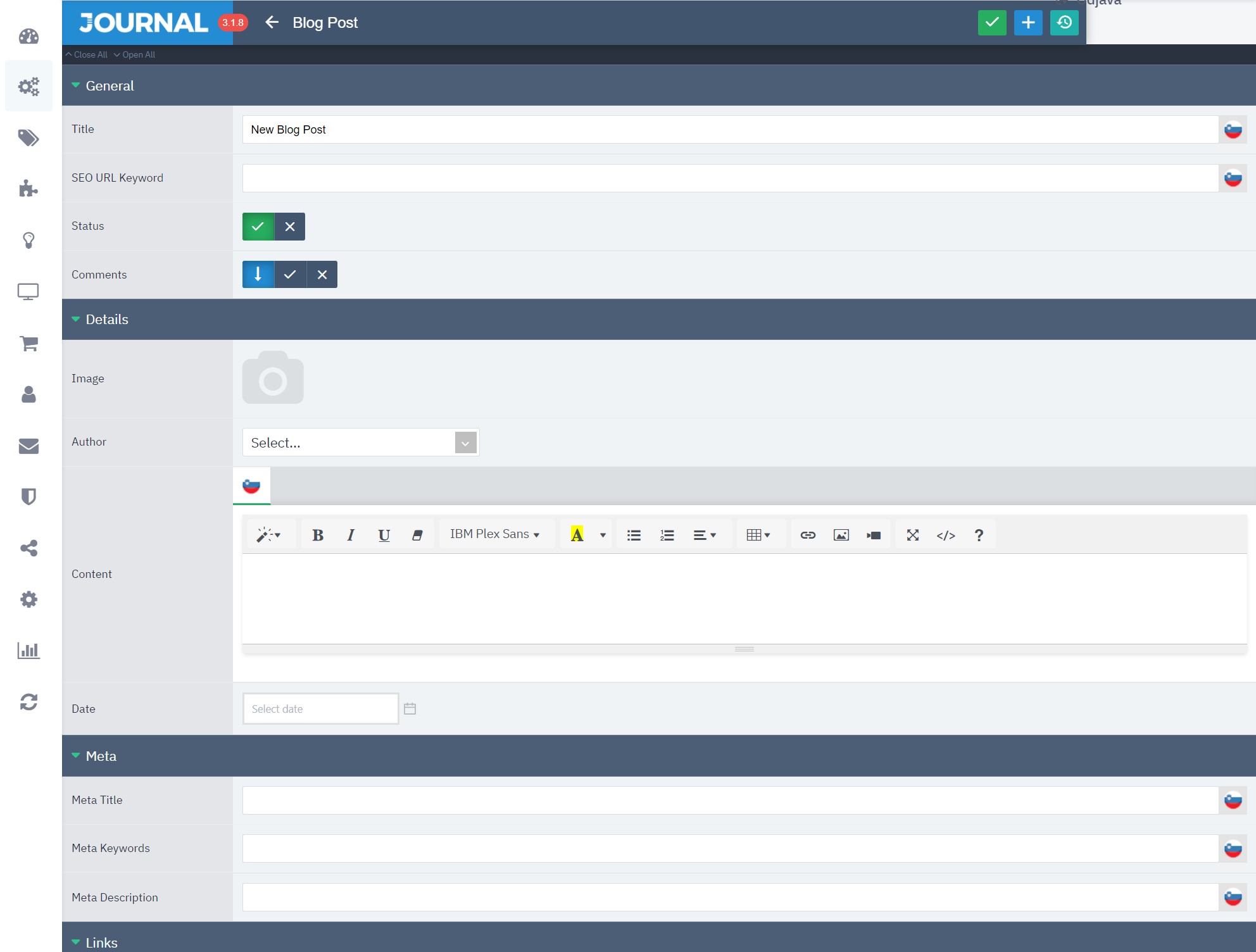
Blog post – General
Title
Enter the post title in this field. (Example: New chair collection)
SEO URL Keyword
Enter the post’s URL in this field. (Example: new-chair-collection)
Status
Click the tick to make the post visible on the website, or the cross to hide it.
Comments
Tick to allow comments below the post.
Blog post – Details
Image
Choose the image shown on the post itself and on the page listing all your posts.
Author
Optionally enter the author of the post/article/news item.
Content
Enter all the post content in the Content field and format it with the tools in the toolbar at the top.
Date
Enter the date the post was created.
Blog post – Links
Categories
Click the “+” icon on the right to add the post to specific categories, if you’ve created them in advance.
Related products
Click the “+” icon on the right to add one or more products from your online store that you want to feature below the post content.
Creating blog categories
To make your published posts clearer and easier to find, it’s worth organising them into predefined categories (Example: Food, Health, Technology, etc.). This way visitors can more easily find the specific post they’re looking for on your website.
To create a new blog category, go to Journal > Blog > Categories and click the “+” icon at the top right.
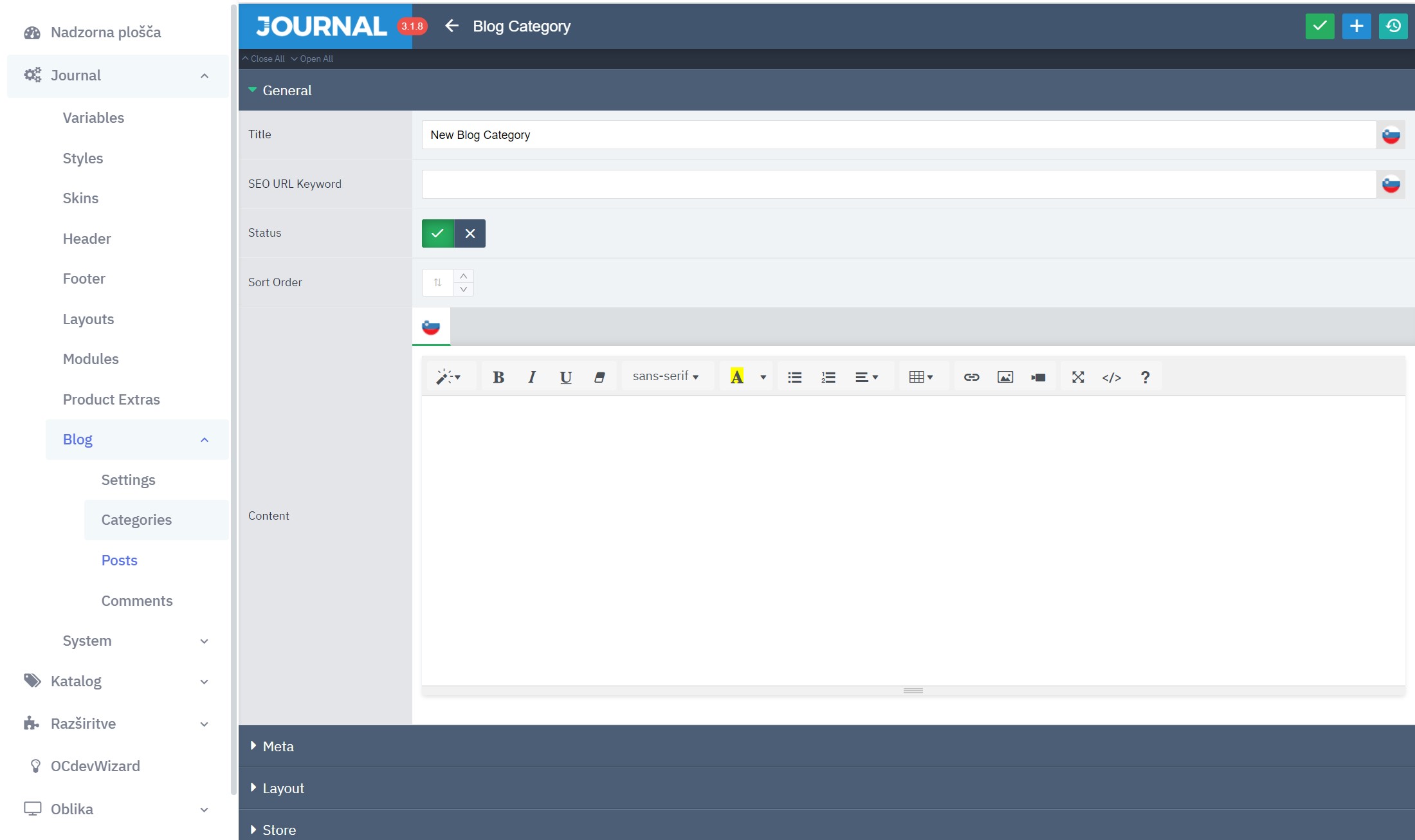
Title
Enter the category title in this field. (Example: Healthy eating)
SEO URL Keyword
Enter the category’s URL in this field. (Example: healthy-eating)
Status
Click the tick to activate the category and make it visible on the website, or the cross to hide it.
Sort order
Use a number to set the position of the category you’re creating. This order applies wherever all categories are listed.
Content
Enter a description, general information or features of the category in the Content field.