
OPENCART ADMIN – Sales
Sales in an OpenCart store
All orders placed and detailed customer information are recorded in the Sales section. The website administrator can manage orders and customers, and add, delete or edit them manually. For B2B sales, you can also assign customers an account manager (sales representative). The system notifies the account manager by email when their customer places an order through the online store.
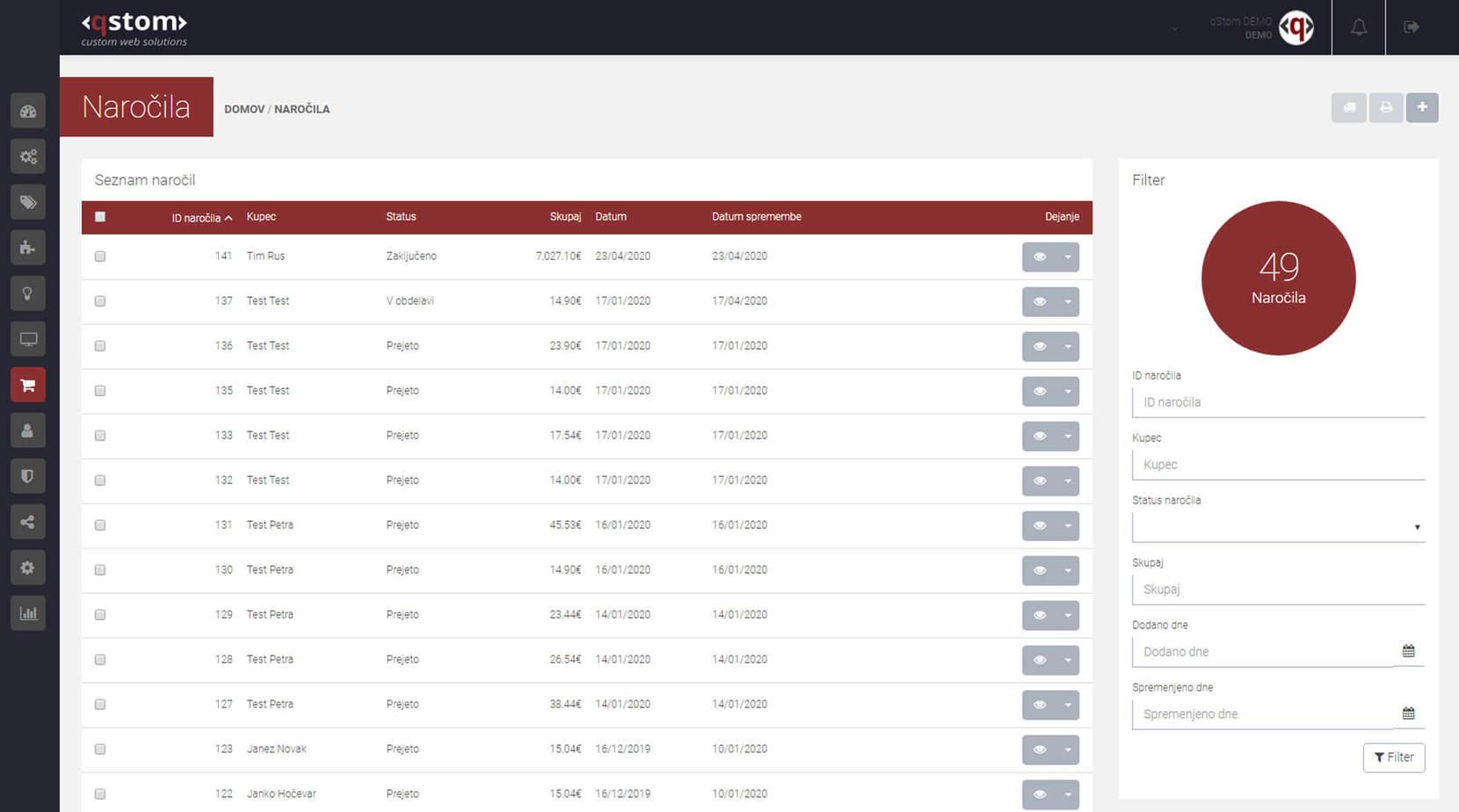
Orders
The list of online orders is under Sales > Orders. This page shows every order customers have ever placed. To find an order more easily, sort the orders in the table or enter key details in the search fields above the table. After entering or selecting values in the fields (you can combine several, and all conditions must match), confirm by clicking the “Filter” button.
In the orders table, you can sort orders by order ID, customer, order status, total, date added or date modified.
In the “Action” column, each order has View, Edit and Delete buttons for managing it.
VIEW
Clicking View shows all the order details, split into tabs. This view suits manual order processing, as it gives you all the order details and the order history, where you change the order status and use the system to let the customer know you’ve received the order and started processing it.
History
You can track and record the history of each order on the History tab, which lists how the order has progressed. To add a new entry, use the fields under Add Order History. In Order Status, choose the new status (statuses are predefined in the system), tick “Notify Customer” if you want the update and comment to be emailed to the customer, and enter your comment or a thank-you for the order in the Comment field.
All order statuses and their comments are visible to customers when they log in, even if you didn’t select “Notify Customer”.
In this view, you can’t change the order itself (change or add ordered products, shipping method, payment, etc.). To do that, use the “Edit” button.
EDIT
To change or add to a customer’s order, click the “Edit” button next to the order. Here you can change the customer and payer details, ordered products (remove or add them), and the shipping and payment methods. To change a received order, follow the steps that guide you through the ordering process.