
Editing the home page
In the OpenCart admin, you edit the home page by building it from modules. To edit the home page, go to the shortcuts menu icon (the star at the top left) or go to Journal > Layouts > Home.
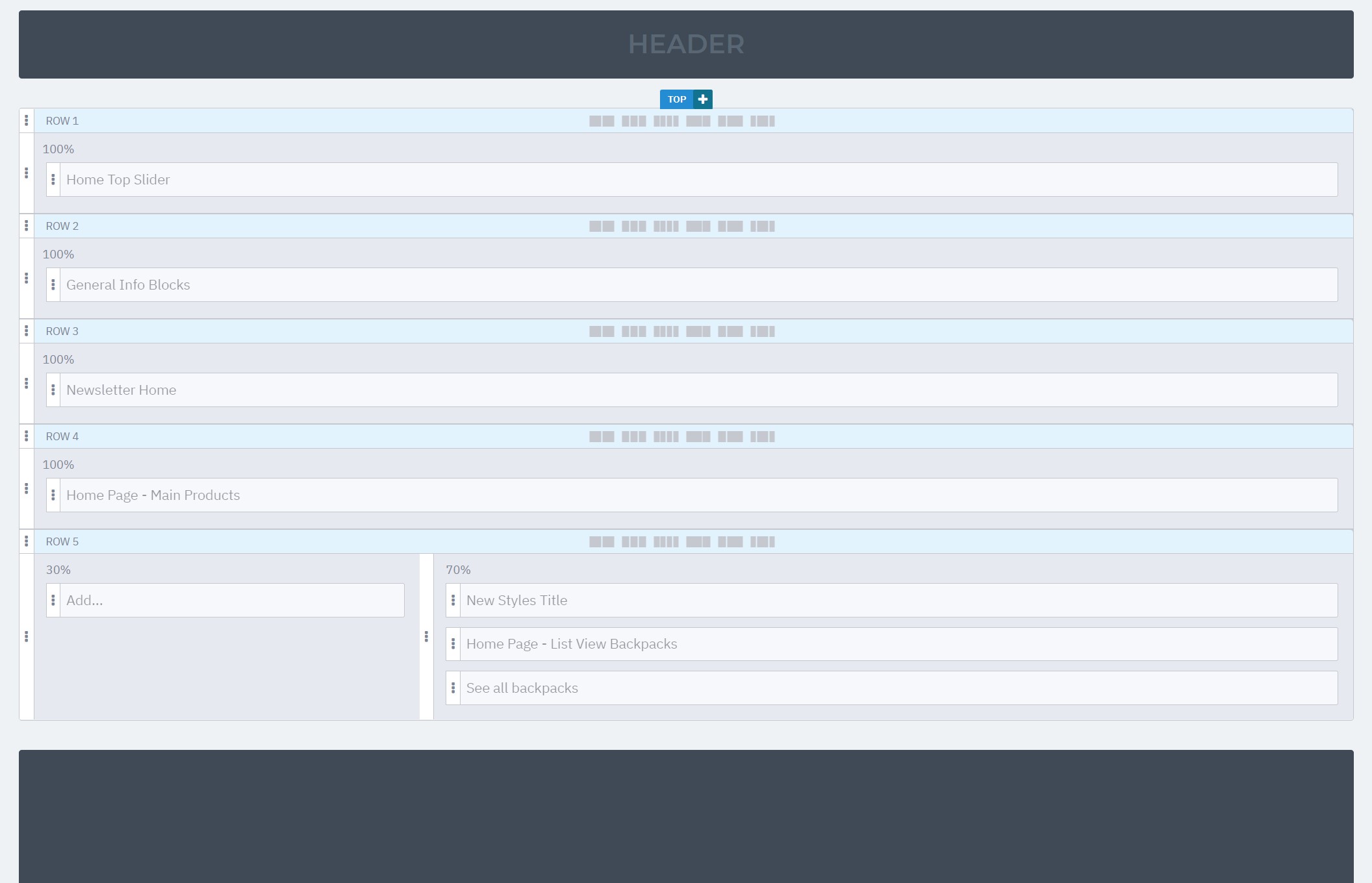
A page opens showing the basic structure of your website. It’s built from blocks in several rows and columns. For example: row 1 (ROW 1) has a block with a module that shows a banner slider, and row 2 (ROW 2) has a module that shows information blocks. Row 5 (ROW 5) has module blocks split into two columns.
Adding a new row – ROW
To add a new row of blocks to the home page structure, click the “+” icon at the top centre, next to the text “top”. A three-dot icon appears on the left of the new row. Click and hold this icon to move the row where you want it; you can do the same with columns and module blocks.
Adding new columns within a row
The name of the new row is in the blue box at the top of the row. On the right of the blue box there’s another “+” icon. Click it to add a new column to the row. In the top left corner of the new column there’s a percentage. Hover over it to change the value. It makes sense to set it in proportion to the number of columns (e.g. 4 columns = 25% each). You can also play with the value and, for example, split two columns 30% and 70%.
Adding blocks
Each row has a grey area with space reserved for a module block that hasn’t been set yet. Move to the top right corner of the grey area and you’ll see the “+” icon again; click it to add space for a new module in that row or column.
Adding modules
Now that the blocks in rows and columns are created, you can assign each one the module you want to show there. Click an empty “Add…” block and choose the module from the list.