
Sliders
Sliders are advanced modules that show image “banners” that change automatically. You usually notice them first on the website’s home page. The images often promote discounts on certain products or a new service you offer. You can also add a video with a direct link to a video platform.
For editing sliders, we’ve added quick access in the shortcuts menu. You can also get there via Journal > Modules > Slider. You’ll arrive at a list of all sliders used on your website.
Choose the one you want to edit.
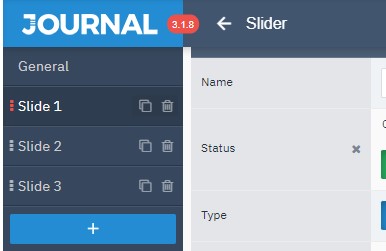
Slider – General
The General tab holds the general settings for all slides in the slider.
Module name
The name of the slider you’re editing.
Status
Slider enabled/disabled.
Image Dimensions
Dimensions of the main slide image.
Content Dimensions
Dimensions of each slide’s content. If you leave the field empty, it matches the “Image Dimensions” settings.
Auto Height
Keeps the slider height in proportion to the chosen image.
Shuffle
Plays slides in random order.
Loop
Loops slides endlessly: the first slide appears again after the last one. You need at least 3 slides for this to work.
Slide View
Full-screen mode ignores the slider’s set dimensions and uses the window size instead.
Backdrop
The background behind the slides. It’s only partly visible during certain slide transitions.
Slider – Transition
Transition
Choose the transition used between all slides.
Transition Speed
Set the speed of the transition between slides.
Slide Delay
How long each slide is shown before the next one appears.
Transition Direction
Choose the direction slides change in (horizontal or vertical).
Slider – Behavior
Touch Swipe
Lets users change slides by swiping with a finger.
Mouse Drag
Lets users change slides by dragging with the mouse.
Autoplay
Starts playing slides automatically.
Pause on Hover
Stops slides changing when you hover over the slider.
Timer
A progress bar below the slides that shows how much longer the current slide will be shown.
Slider – Navigation
Arrows
Left and right arrows for navigation.
Bullets
Dots/icons for navigation.
Thumbs
Thumbnails for navigation.
Adding and editing slides
To add a new slide, click the large blue button with the “+” icon below the General tab on the left, or below the existing slides.
Slide – General
Name
The slide’s name.
Status
Slide enabled/disabled in the slider.
Type
The type of slide content: an image, a video or a background colour.
Slide Image
Upload the image for the slide.
Image Alt
Alternative text, shown if the image doesn’t display for the visitor.
Slide Link
Set the link the visitor goes to when they click the slide.
Slide Delay
Sets how long this particular slide is shown. This value overrides the global one set in the previous section.