
For special occasions, you’ll sometimes need to add promotions or discounts to several or all products. So you don’t have to do this manually for each product, you can add promotions to products in bulk under Catalog > ProductManager.
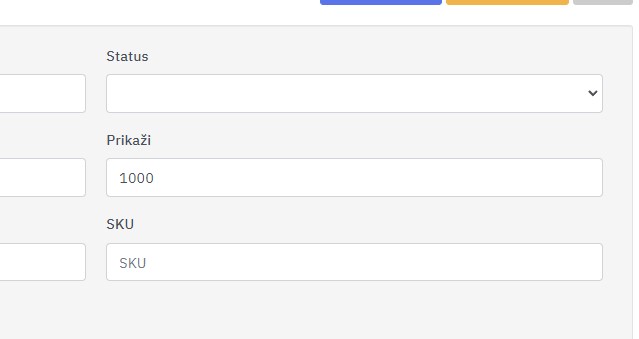
A list of all products opens. Use the filter to narrow it down to the products you want to add the promotion to. To do this for all products, enter the maximum number of products in your store in the filter’s “Show” field (e.g. 1000).
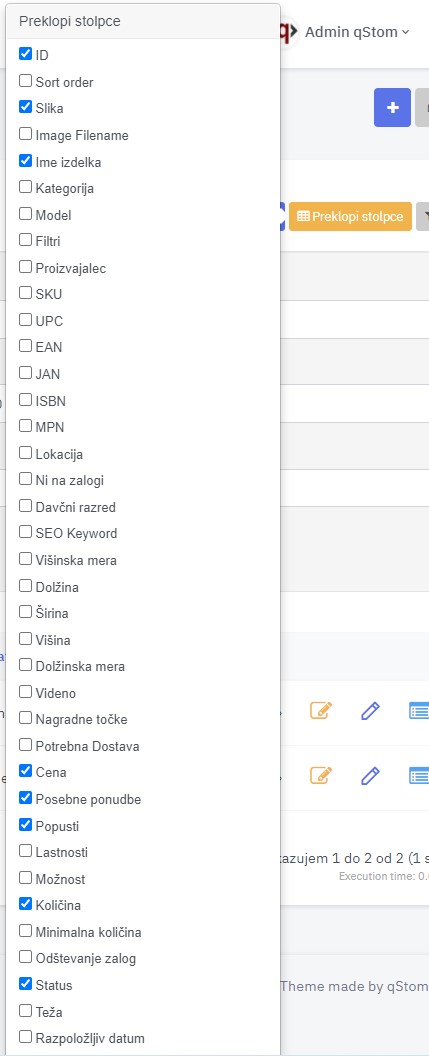
Go to the top right corner and click the yellow “Toggle columns” icon.
Tick the options as shown in the image below.
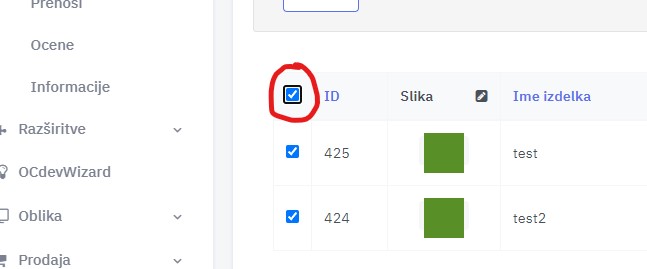
Then select all products in the list by clicking the box next to the “ID” column.
Now you can edit all selected products at once. Click the grey pencil icon next to the column you want.

To edit the sale price, click the icon in the “Specials” column.
In the window that opens, choose the following from the drop-down menus:
Customer group
Choose “Default”.
Priority
You can leave this empty.
Price
In the first drop-down, choose the operator you want (for a discount, choose subtract), then enter the discount value in the field, and in the second drop-down choose the unit (€ or %) for the value you entered.
Date
Set how long the promotion runs in the “date from” and “date to” fields.
Don’t forget to save by clicking the grey floppy disk icon in the top right corner.