
To add coupons, go to Marketing > Coupons and click the blue “+” icon in the top right corner.
In the window that opens, you can start entering the coupon details in these fields:
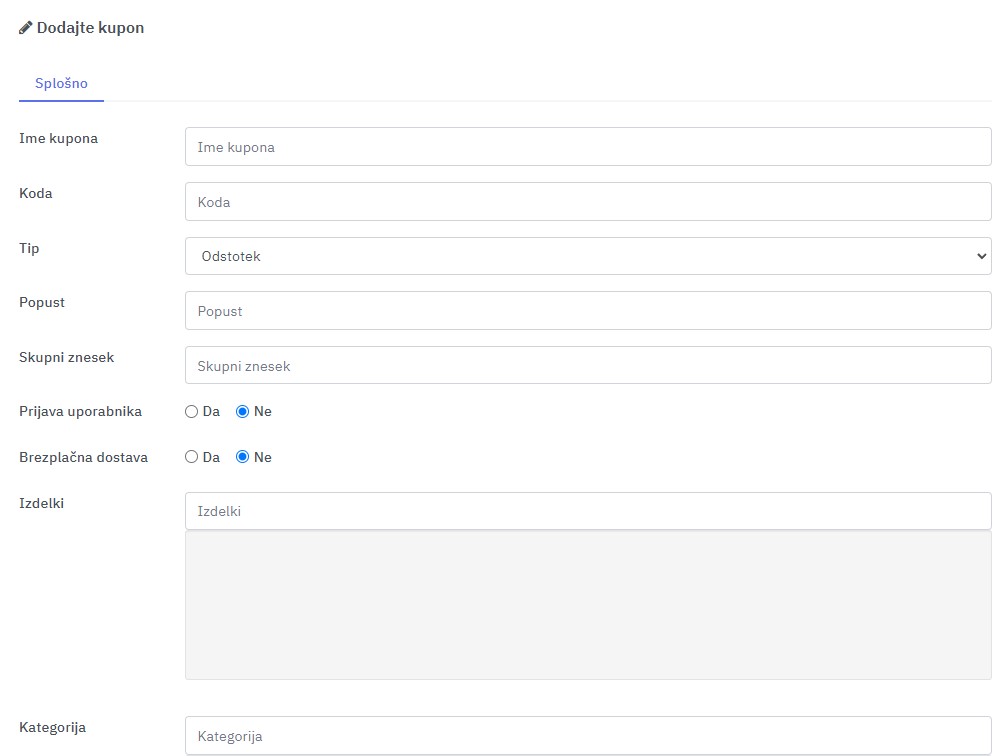
Coupon Name
Enter the full name of the new coupon.
Code
Enter the code customers will need to enter to redeem the coupon.
Type
Set the type of discount the coupon gives. You can choose a fixed amount (e.g. €20) or a percentage (e.g. 20%).
Discount
Enter the discount value as a number.
Total Amount
Enter a number to set the order value from which the coupon is valid. (Example: if you enter 50, customers can’t redeem the coupon until their cart total is over €50.)
Customer Login
Choose Yes or No to set whether customers must log in to redeem the coupon.
Free Shipping
Choose Yes if you want the coupon to give free shipping.
Products
Start typing the names of the products you want the coupon to apply to. When the product appears in the drop-down below the field, click it to add it to the list.
Category
If you want the coupon to apply to products in specific categories, type the category names here to add all products in those categories, so you don’t have to enter each product separately.
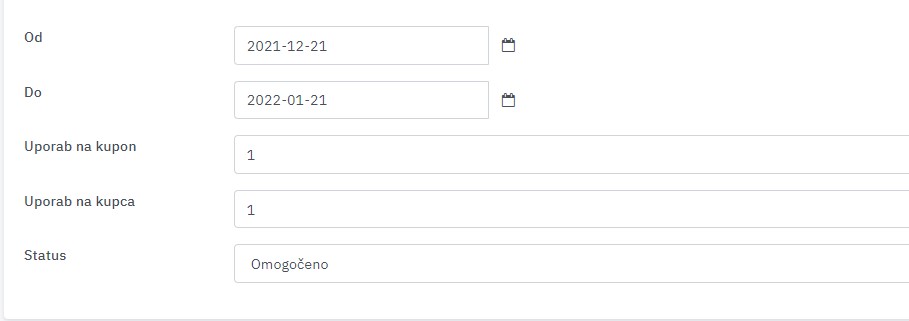
Date Start
Enter the date the coupon becomes valid.
Date End
Enter the date the coupon expires.
Uses Per Coupon
Enter the total number of times the coupon can be used across all customers. (Example: if you enter 100, only the first 100 customers can use the coupon. If you leave the field empty, there’s no limit.)
Uses Per Customer
Enter how many times each customer can use the coupon. (Example: if you enter 1, each customer can redeem the coupon only once. If you leave the field empty, there’s no limit per customer.)
Don’t forget to save by clicking the blue floppy disk icon in the top right corner.