
Shipping and payments decide how customers receive their products and how they pay for them. This guide explains how to set up shipping zones and methods, and payment methods, in WooCommerce. Changes affect your online store’s checkout directly, so test them with a test order after every change.
In short: shipping and payments in 6 steps
- Open WooCommerce → Settings → Shipping.
- Open (or add) a shipping zone and set its regions.
- Add shipping methods (flat rate, free shipping, local pickup) and set the prices.
- Open the Payments.
- Turn on the payment methods you want (cards, PayPal, bank transfer, cash on delivery).
- Test a purchase all the way through checkout.
1. Shipping zones
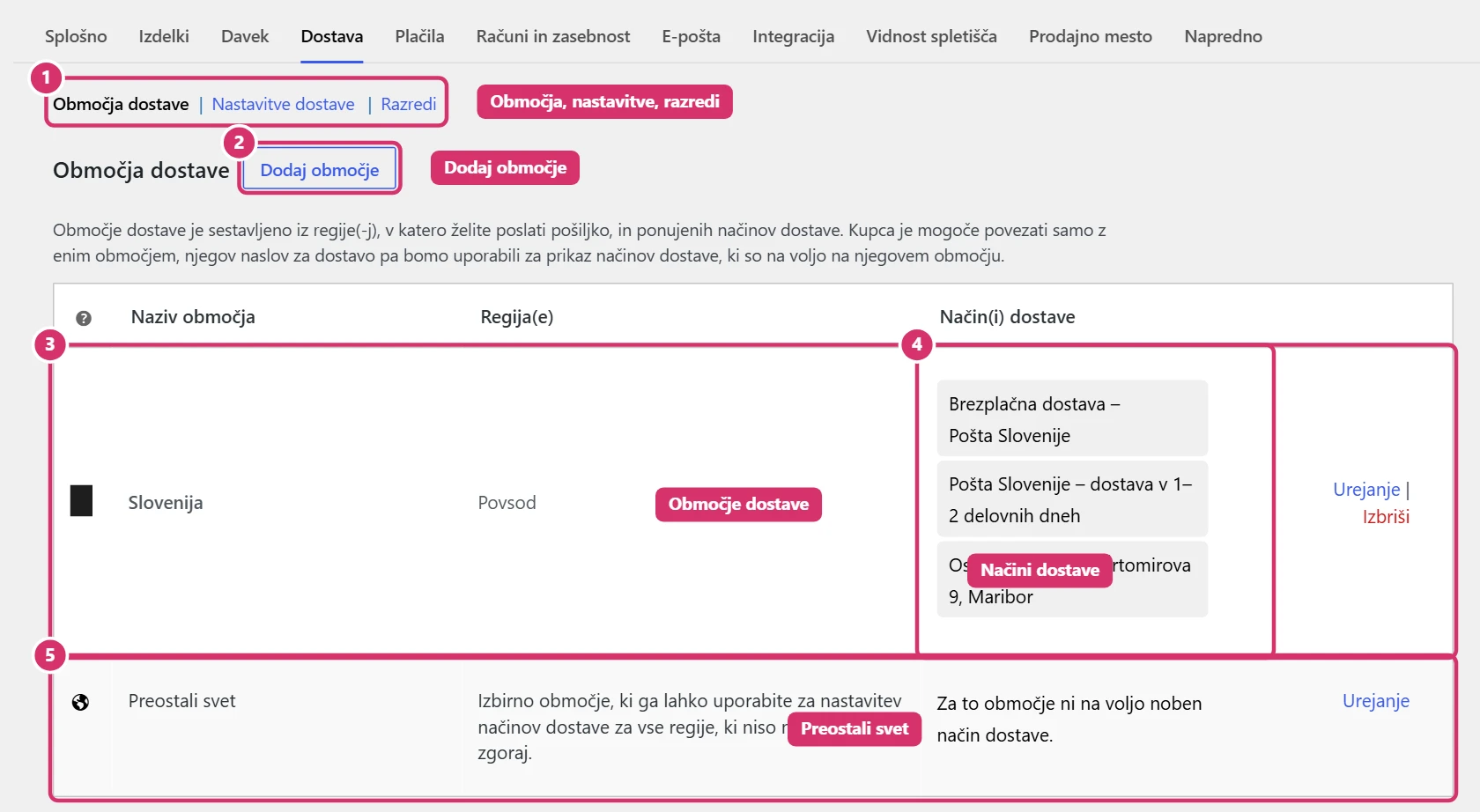
Under WooCommerce → Settings → Shipping you see a list of zones. A zone is a group of regions (e.g. Slovenia or the EU) with its own shipping methods. Customers see the methods from the first zone that matches their address, so the order of zones matters – you can drag them with the handle on the left. The Rest of the world zone applies to all regions not covered by other zones. Add a new zone with the Add zone.
2. Editing a zone and shipping methods
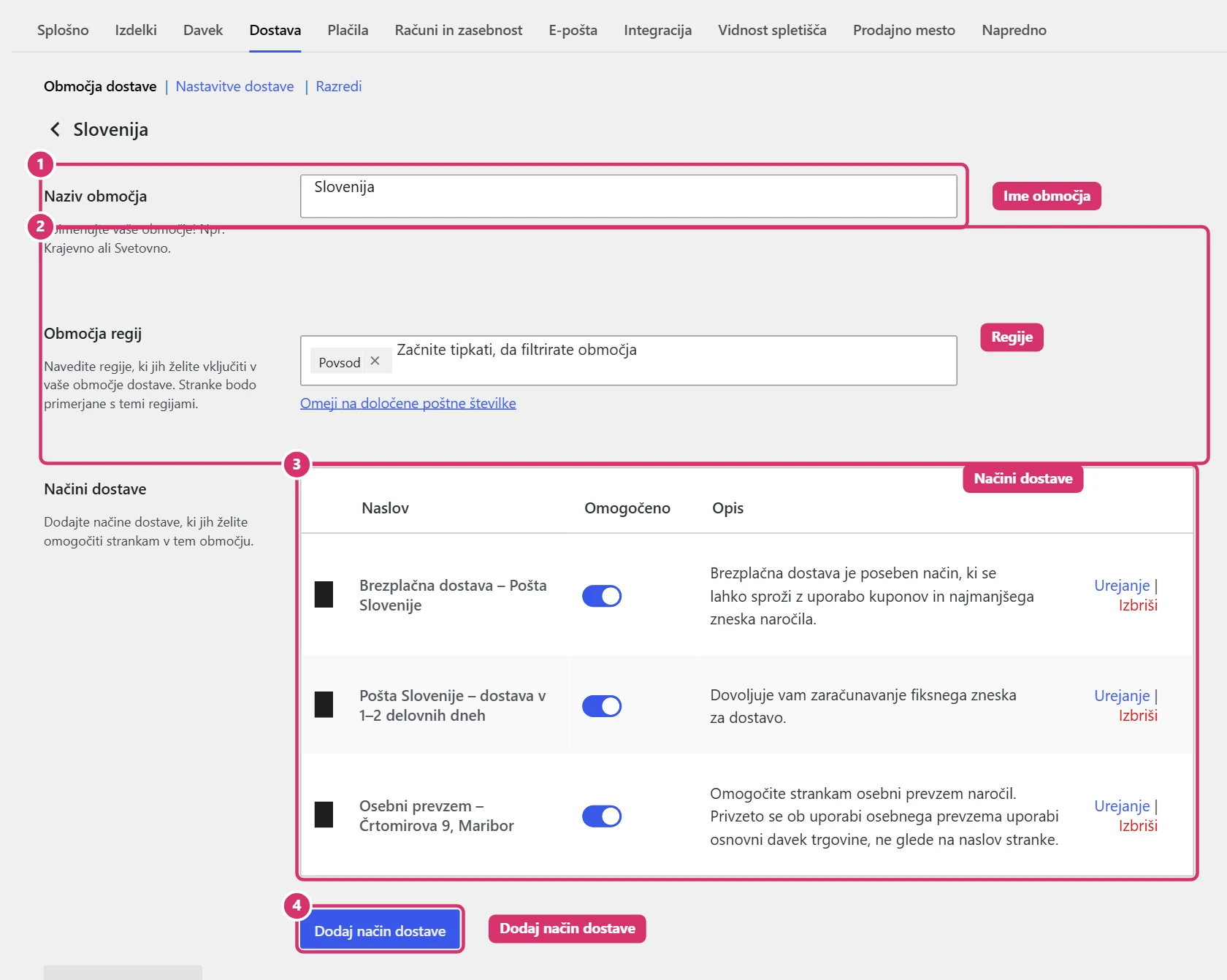
When you click Edit, enter the zone name (only visible to you), choose the regions (countries, states or postcodes) and add shipping methods with the Add shipping method. The most common methods are:
- Flat rate – a fixed shipping price, with an extra charge per quantity or shipping class if needed.
- Free shipping – applies always, or only above a set order amount, or with a coupon.
- Local pickup – the customer collects the order from your shop.
With the toggle in the Enabled column, you turn a method off temporarily, and by clicking Edit you change its name, tax status and price. On the Classes tab, you can set shipping classes if some products (e.g. larger or heavier ones) have a different shipping price.
3. Payment methods
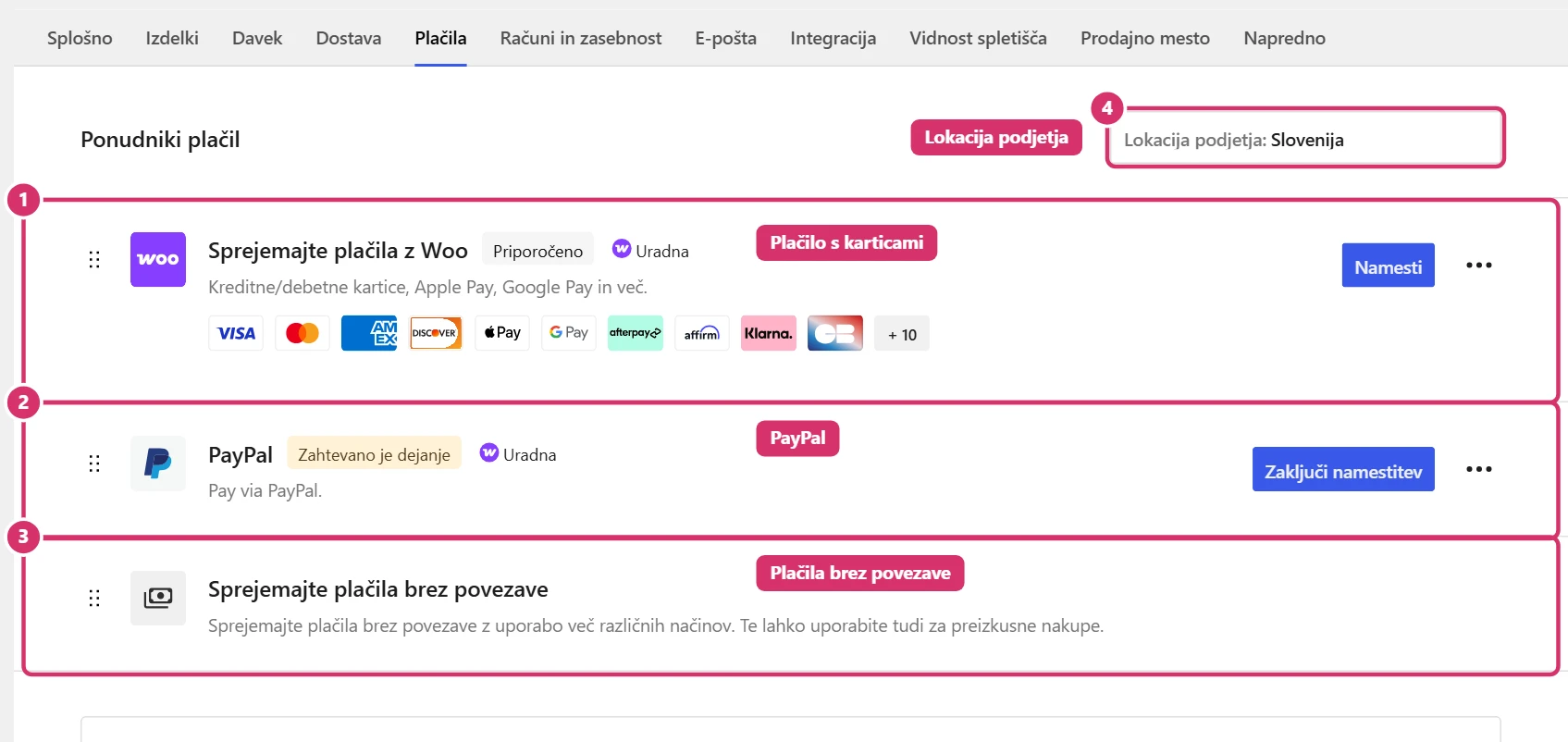
Payment methods are under WooCommerce → Settings → Payments. The list shows online card payments and payment gateways (e.g. PayPal), and the Offline paymentsgroup. With the Set up, Finish setup or Manage button, you open the settings for each method. At the top right, you can choose your business’s country, which adjusts the list of suggested methods.
Enter payment gateway keys and passwords (API keys) only in the settings of each gateway, and never send them by email or in messages.
4. Offline payments
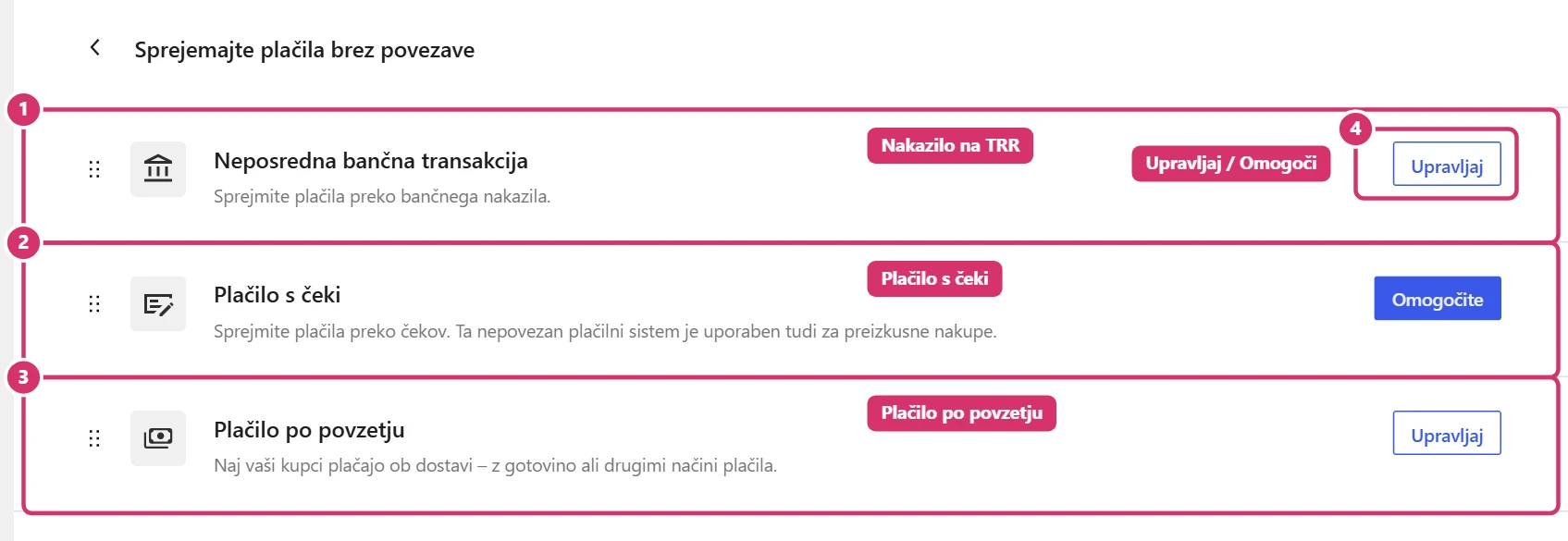
In the Offline payments group, you’ll find three methods: direct bank transfer (the customer gets instructions for paying into your bank account), cheque payments and cash on delivery. For each, you can set the title and description customers see at checkout, and the instructions in the email. With a bank transfer, the order stays On holduntil you receive the payment (see Bricks – Orders).
5. Testing and common mistakes
After making changes, add a product to the cart, open the checkout and check that the shipping and payment methods are correct. If a shipping method doesn’t appear, check the zone’s region, the order of zones and any minimum order amount for free shipping. If a payment method doesn’t appear, check that it’s enabled and allowed for the selected country.