
Anyone who logs in to the admin or has an account in the online store is a WordPress user with a particular role. This guide explains how to review and add users and customers, change their role and reset their password. The data in the screenshots has been replaced with made-up examples.
In short: users and customers in 6 steps
- In the menu, open Users.
- Find a user with search or the role filter.
- For a new user, click Add New User, enter the details and choose a role.
- Change an existing user’s role in their profile or with bulk actions.
- Reset a password with the Send password reset.
- You’ll find an overview of customers and their purchases under WooCommerce → Customers.
1. User list
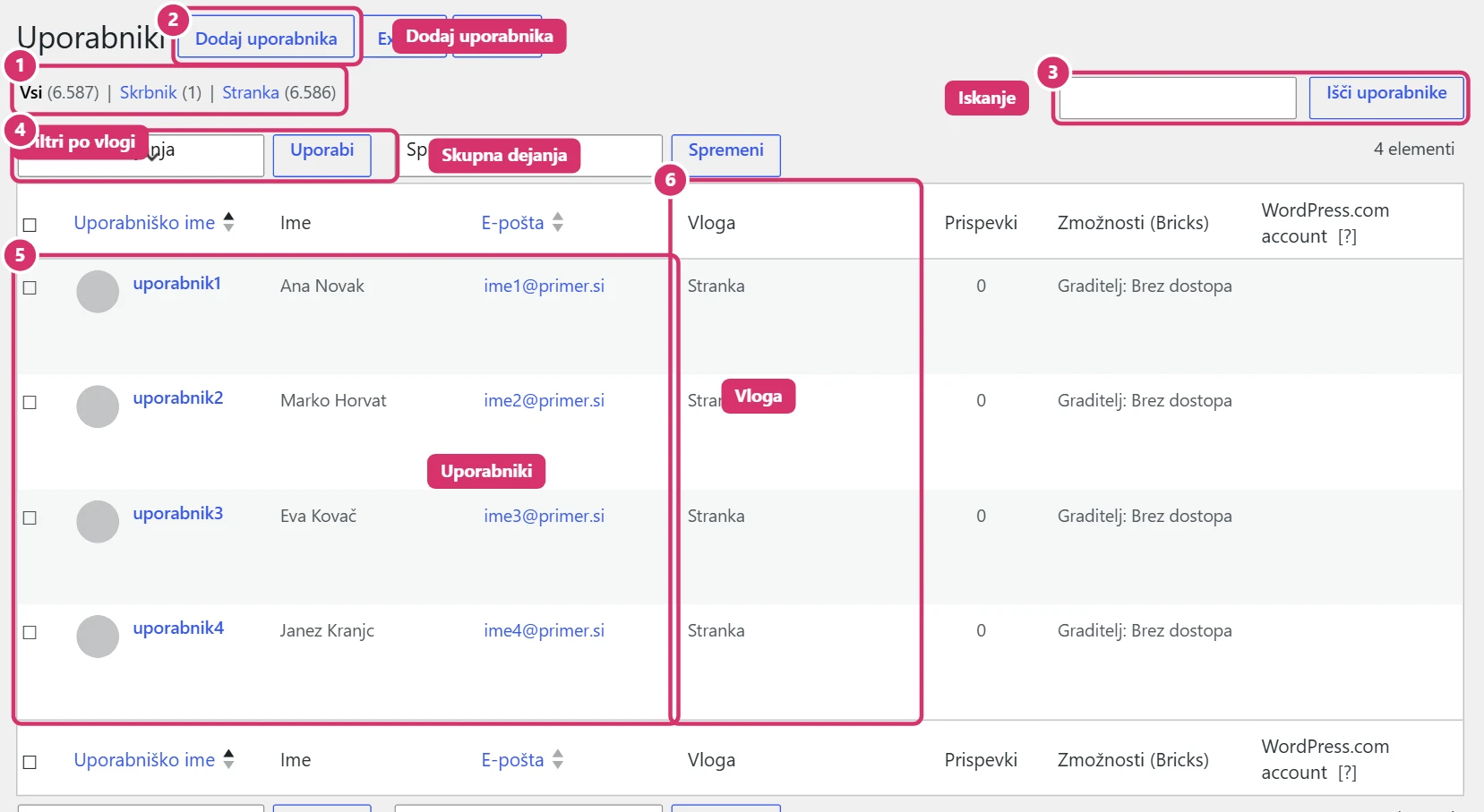
You’ll find the list under Users → All Users. Above the table are role filters (Administrator, Editor, Customer etc.) with the number of users. In the right corner is a search by name, username and email. When you hover over a user’s name, the links Edit, Delete, View and Send password reset.
2. Roles
The role sets what a user can do. The most common are:
- Administrator – full access to everything, including plugins and settings. Give it to as few people as possible.
- Editor – edits all content (pages, posts, media) but has no access to settings.
- Shop Manager – manages products, orders and coupons.
- Customer – a buyer in the online store; doesn’t log in to the admin, but has access to their own account.
Change an individual’s role under Edit; for several users at once, select them and choose the new role in the Change role to… field.
3. Adding a user
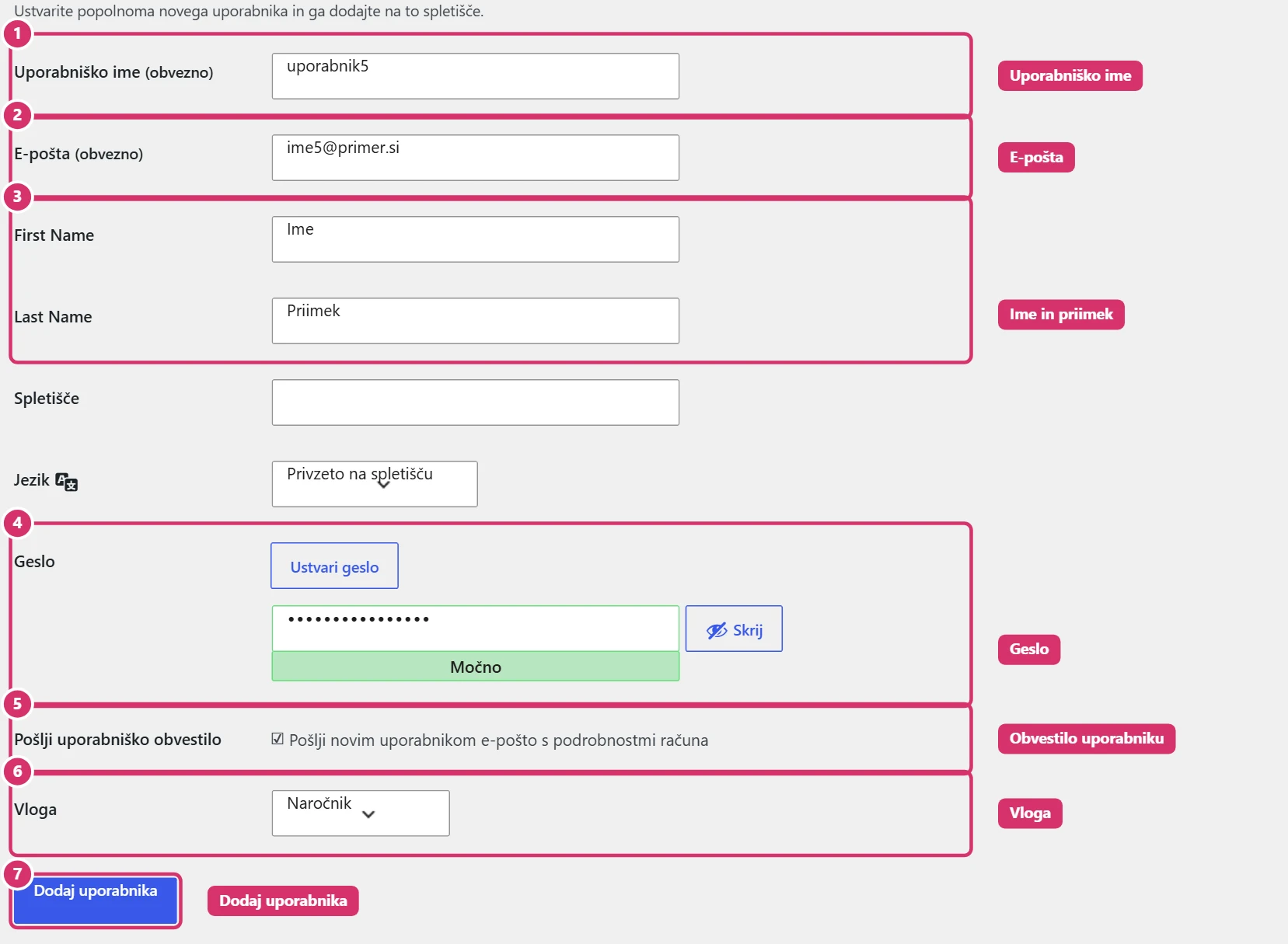
In Users → Add New User enter the username and email, optionally the first and last name, choose the role and click Add New User. WordPress creates the password automatically; with Send User Notification ticked, the new user gets an email with a link to set their password. Never send passwords in plain text in messages or by email.
4. Store customers
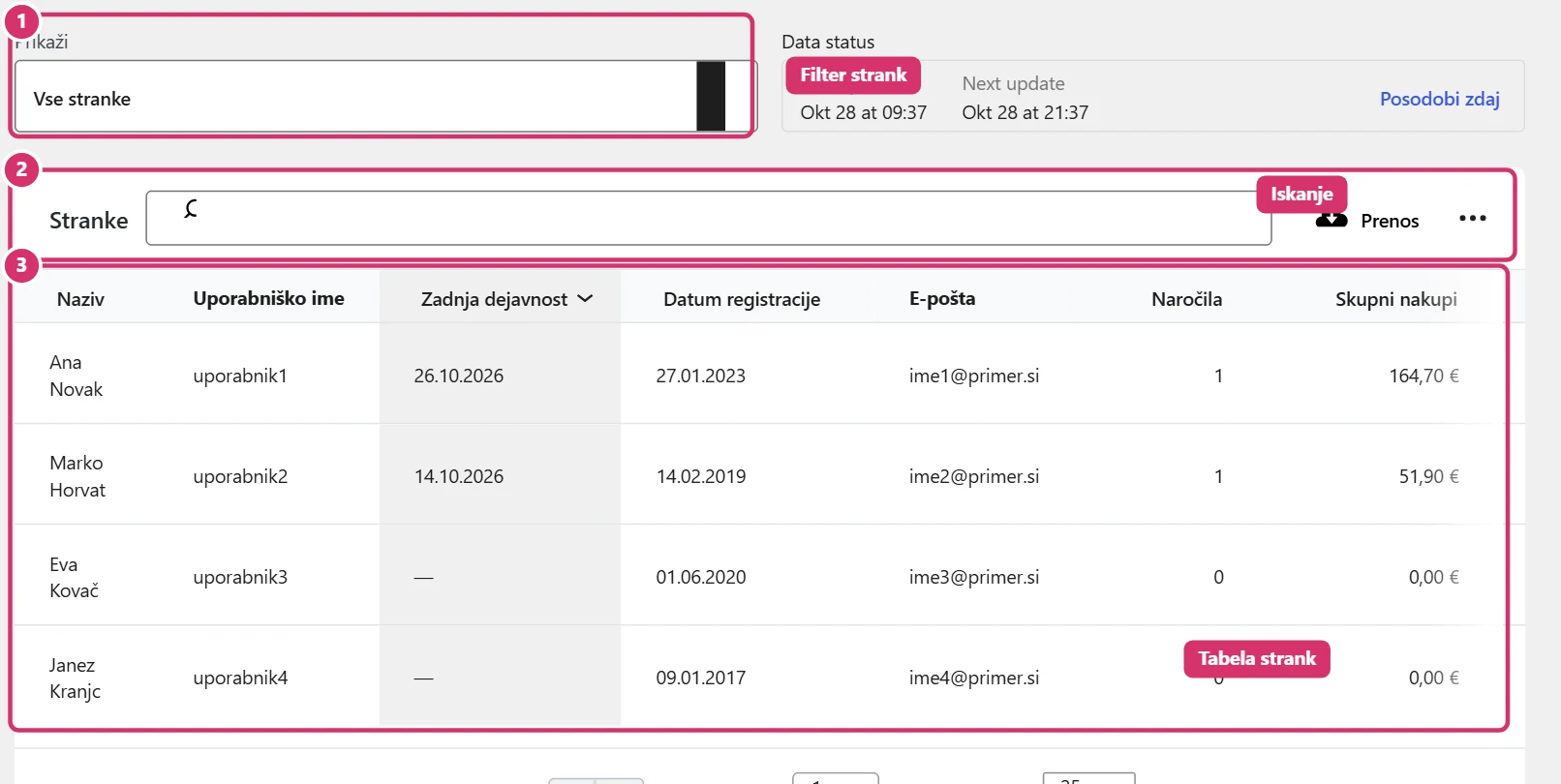
The customer overview is under WooCommerce → Customers. The table shows the name, registration date, email, number of orders, total spend and average order value. You can filter and search the table and download it as a CSV. To see a particular customer’s orders, search for their name or email in WooCommerce → Orders (see Bricks – Orders).
5. Security and privacy
Customer data is personal data, so handle it with care: use strong passwords, give the administrator role only to trusted people, delete unneeded accounts and don’t copy customer data into unsecured files. You can handle a customer’s request to erase their data under Tools → Erase Personal Data.