
Editing images in an OpenCart store
The image manager is the tool administrators use to upload images. Logos, product photos and brands all need images uploaded to the server. You can do this easily with the image manager, which is part of an OpenCart store.
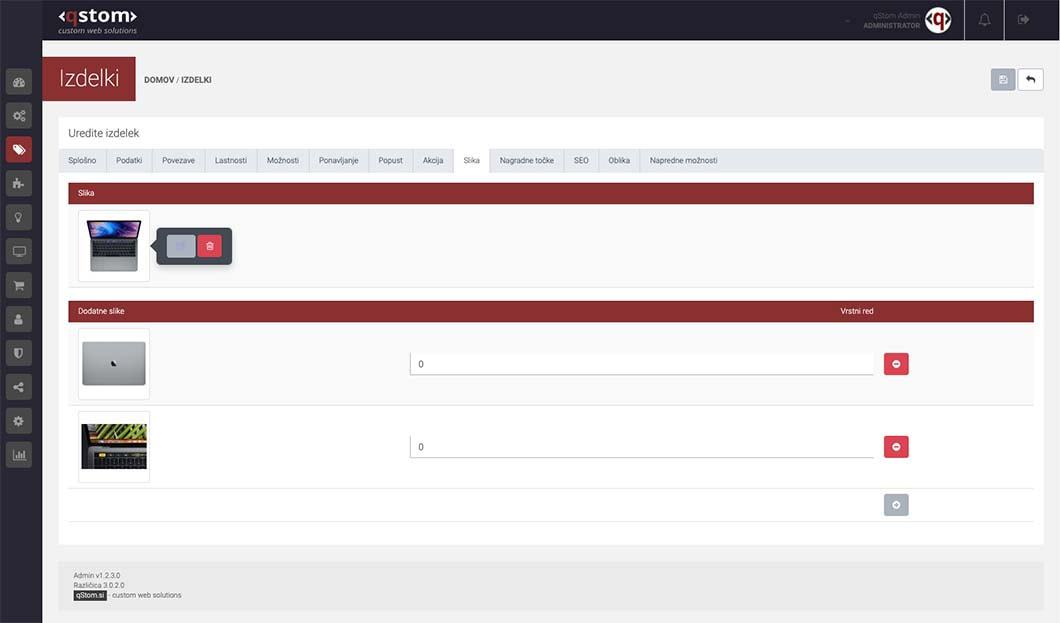
Editing images
Clicking an image shows two extra options: the “Edit” and “Delete” buttons. To make images available to users and the system, upload them to the server and assign them to a product, category, news item, etc. Existing images on the server are kept in folders, which you can create and edit as you like. To add an image to the selected folder, click the “Upload” button in the toolbar to add images directly from your computer. Once uploaded, the image appears in the active window. Click the image to assign it to a product, category, etc. To remove an image or folder from the server, tick the box in front of its name and click the red “Delete” button in the image manager toolbar.
Before you upload images to your online store
1. Name images meaningfully after the product, and don’t use accented letters or special characters. If the image shows, say, Adidas trainers, a name like DSC1101.jpg tells us very little – and Google too. It’s much better to name the image after the product, e.g. Trainers_Adidas_Twin2_black.jpg. If needed, add a unique code at the end to make products easier to find.
2. Optimise images for the web before uploading them to the server. Don’t upload images larger than necessary, as this slows the website down and takes up server space needlessly. Also compress images of a suitable size – free online tools such as Optimizilla (https://imagecompressor.com) can help.
3. Organise images on the server into suitable folders (e.g. by product category) so they’re easier to find. As with image names, give folders meaningful names without accented letters or special characters.