
Advanced file manager
We’ve built a new file manager into the OpenCart store admin. Like the previous one, it has all the basic features, plus quite a few new ones.
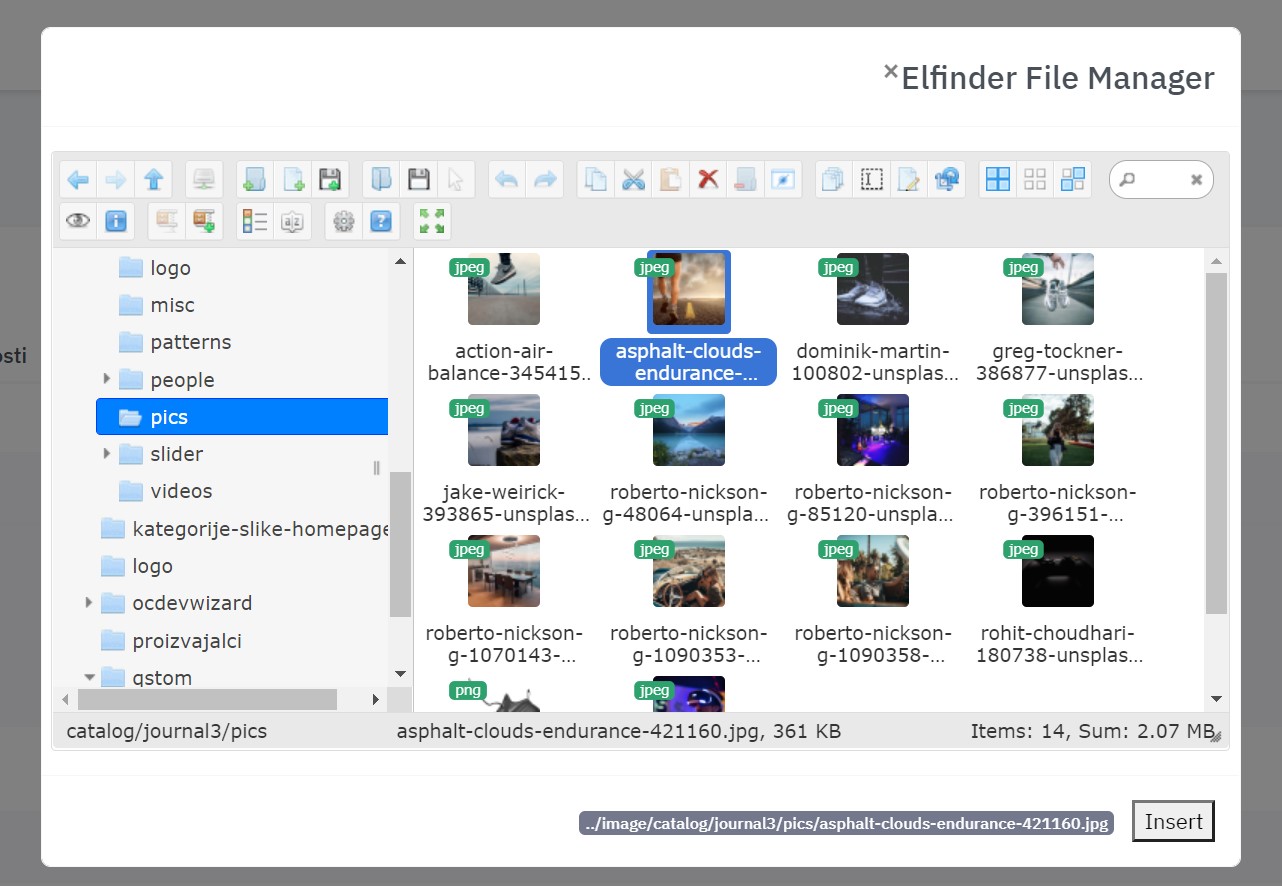
On the left you see a tree of all folders, which makes it easier to navigate nested folders on the server, and on the right you see the contents of the selected folder.
At the top is the toolbar. Besides the basic functions (upload file, delete, copy, duplicate, cut, hide, rename, etc.), it also has more advanced ones.
Editing images
Image editing features have been added.
– Clicking this icon opens a window for rotating and resizing the image.
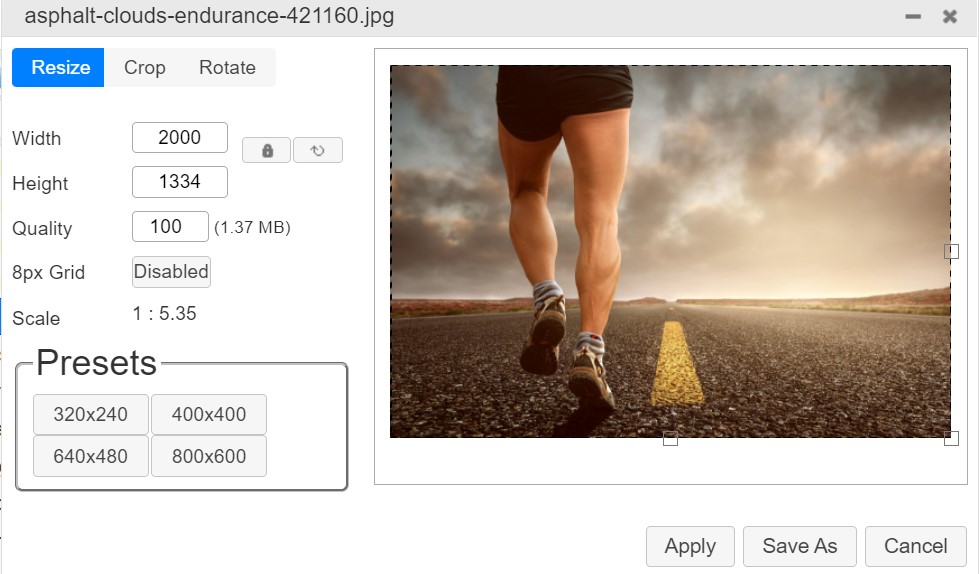
On the “Resize” tab, you can resize the image by entering the height and width in pixels (px). You can also change the “quality” value, which reduces the image quality, and with it the file size, by a percentage. If you like, you can choose predefined image sizes from the presets below.
The “Crop” tab is for cropping the image. It’s useful when you want to remove a distracting icon, logo or caption from an edge or corner of the image, or change the image’s aspect ratio (for example, to a wide format when making a banner).
On the “Rotate” tab, you can rotate the image by any number of degrees to suit how you want to present it.
When you’re done editing, click “Apply” and all changes are saved to the file you’re editing. If you want to keep the current file unchanged, click “Save as” to save the changes to a copy of the original file.
Advanced image editing
Clicking the icon in the next image gives you more advanced image editing options.
There are two tools:
TUI Image Editor
Add filters, crop, flip, rotate, draw on the image, add basic shapes, icons and text, and set image size and quality.
Photopea
A more advanced image editor. It’s similar to Adobe Photoshop and offers almost all the same editing features, but runs in your browser, so there’s nothing to install.
Compression
– Click this icon to add several files to one archive. You can choose between TAR, GZIP, BZIP and ZIP formats.