
Attributes are product properties (e.g. flavour, size, colour), and variations are the individual versions of a variable product, each with its own price, stock and SKU. With them, customers choose, say, a flavour on a single product page, and the store keeps separate stock for each choice. This guide explains how to create attributes, add them to a product, create variations and set prices and stock. The screenshots are from the Peak store.
In short: attributes and variations in 6 steps
- Under Products → Attributes create an attribute (e.g. Flavour) and add terms to it (Chocolate, Vanilla).
- For the product, set the Product type to Variable product.
- On the Attributes tab, add the attribute and tick Used for variations.
- On the Variations tab, click Generate variations.
- For each variation, enter the price, SKU and stock.
- Click Save changes and then Update.
1. Attribute or variation?
- An attribute describes the product. It can be purely informative (e.g. Purpose: recovery) or let customers make a choice.
- A variation is the product with a specific choice of attributes (e.g. Flavour: chocolate) and has its own price, stock, SKU and image.
- A variable product needs at least one attribute marked Used for variations.
2. Global attributes (Products → Attributes)
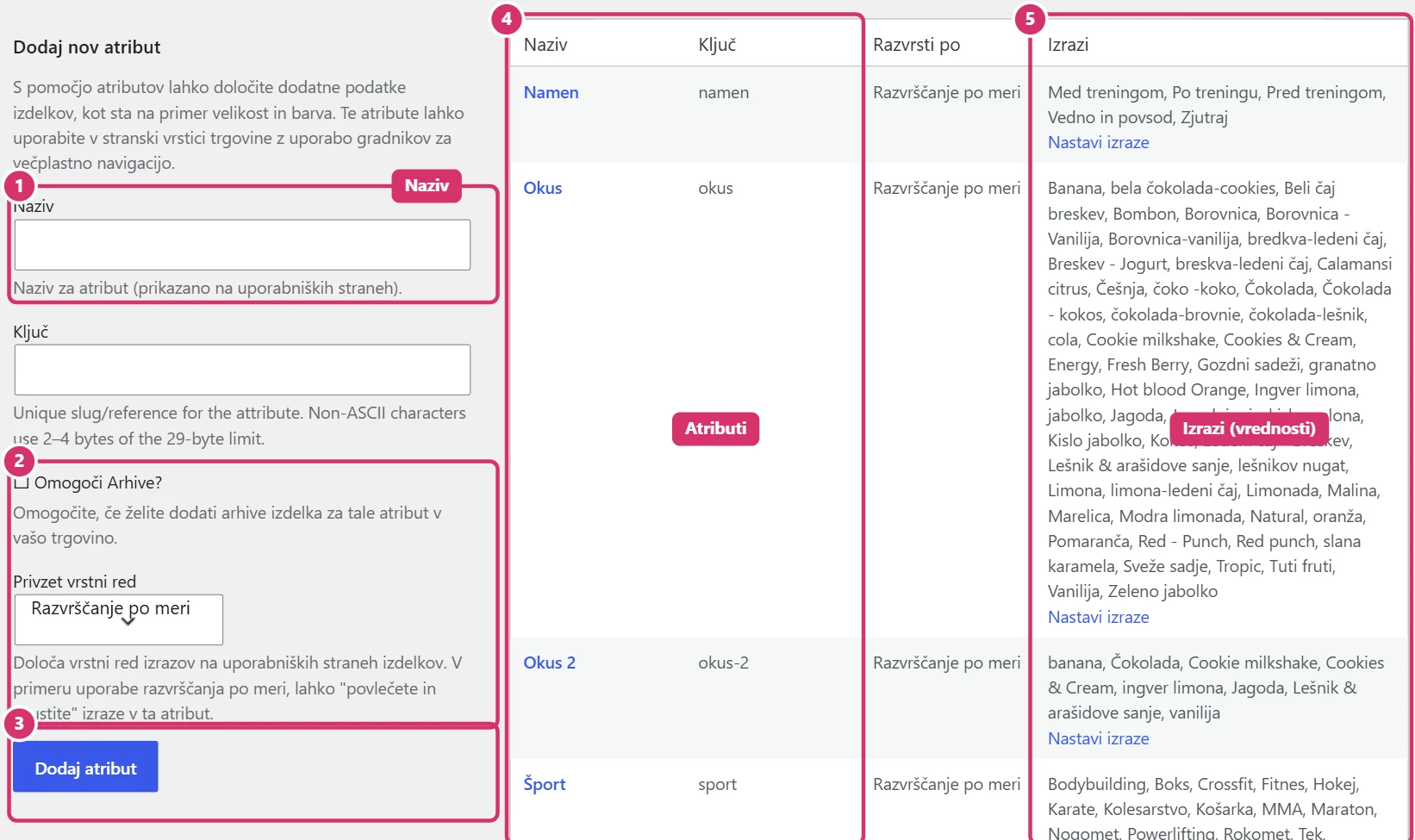
You create a global attribute once and use it on several products. In the left menu, choose Products → Attributes. On the left is the form for a new attribute (name, slug and settings), on the right the list of existing attributes with the Terms.
- Enter the name (as customers see it, e.g. Flavour); the slug is created automatically.
- Usually leave the settings (enable archives, sort order) at their defaults.
- Click Add attribute.
- In the list, next to the attribute, click Configure terms and add values (Chocolate, Vanilla, Strawberry). Each value is one term.
Keep an attribute with many terms (e.g. flavours) in one place, so you don’t end up with duplicate values (Chocolate and Chocolatey).
3. Attributes on a product
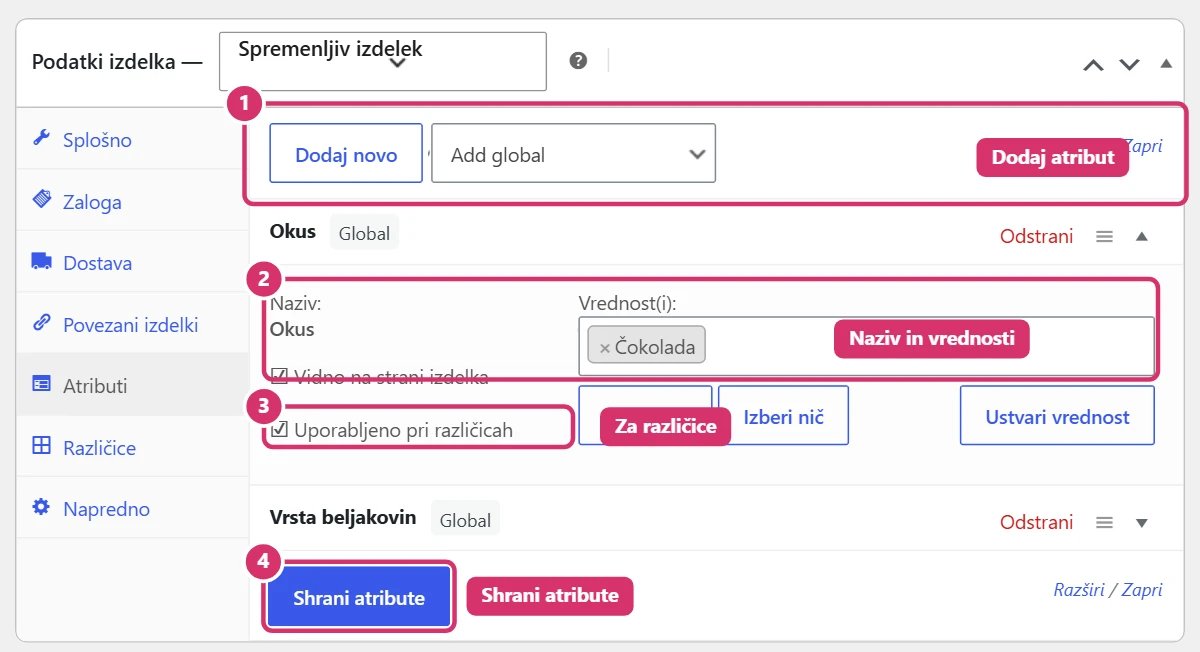
When editing a product, open the Product data box and the Attributes:
- Choose an existing attribute (Add existing) or create a Custom product attribute just for this product.
- For values, choose terms (or, for a custom attribute, type them separated by a | bar).
- Visible on the product page – the attribute is shown in the additional information tab.
- Used for variations – tick this for the attribute customers choose (e.g. flavour). Without it, no variations are created.
- Click Save attributes.
4. Creating variations
The product must be a Variable product. On the Variations:
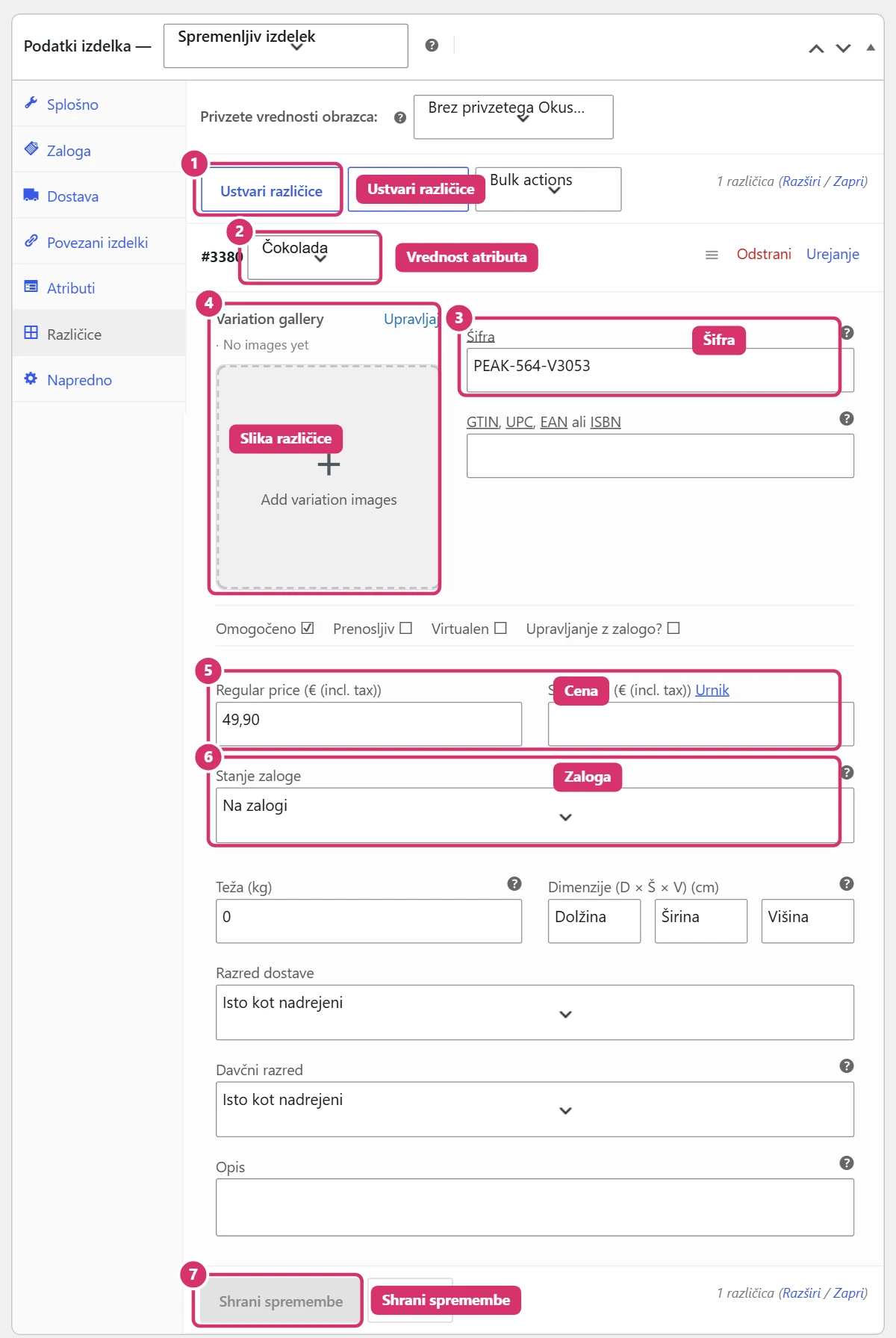
- Click Generate variations (in the drop-down, Create variations from all attributes). WooCommerce creates one variation for each value.
- Open a variation by clicking its row. Each has an attribute value, SKU, image, regular and sale price, stock status and shipping data (weight, dimensions, class).
- If checkboxes are enabled for the product, you can turn on Manage stock separately for each variation.
- Click Save changes and then Update.
5. Price and stock for variations
- The product price on the page is the price of the selected variation. So for a variable product, you don’t enter the price on the General tab, but for each variation.
- For the same price across all variations, use Bulk actions on the Variations tab, e.g. Set regular prices.
- Default form values set which variation is selected when the page opens.
- A variation without a price isn’t shown to customers; before publishing, check that all variations have a price.
6. Common mistakes
- Forgetting to tick Used for variations – variations can’t be created.
- Adding new terms to an attribute without regenerating variations – add them manually or click Generate variations.
- With custom attributes, every product has its own list; with global ones, you edit them in one place.
- Forgetting Save changes on variations before clicking Update.
- Deleting a variation (Remove) is permanent; first check whether it’s used in any orders.