
SEO with Rank Math means giving every page, post or product a title, description and keyword that Google sees, and writing the content so both people and search engines understand it. This guide explains where Rank Math is in the editor, what to enter in each field, how to read the score and what to check before publishing. At the end there are notes for Yoast SEO, which some of our websites use.
In short: SEO in 6 steps
- Choose one keyword (a phrase people type into Google) for the content.
- In the Focus Keyword field in Rank Math, enter the keyword.
- Click Edit Snippet and write an SEO title (up to 60 characters) and a description (up to 160 characters) that both contain the keyword.
- Check that the content has an H1 heading, subheadings (H2), at least one image with alternative text (ALT) and links to other pages.
- Look at the Basic SEO list and fix the red points that make sense.
- Click Update and check the SEO score in the content list.
1. What SEO is and what to expect from it
SEO (search engine optimisation) is work that helps your website appear in Google for the right searches. Results aren’t instant: Google usually takes changes into account within a few weeks. You’ll achieve the most with useful, clearly written content, and Rank Math helps with a checklist. A score of 100/100 isn’t a goal in itself; it’s more important that the text is reader-friendly.
2. Where to find Rank Math
Rank Math appears in two places:
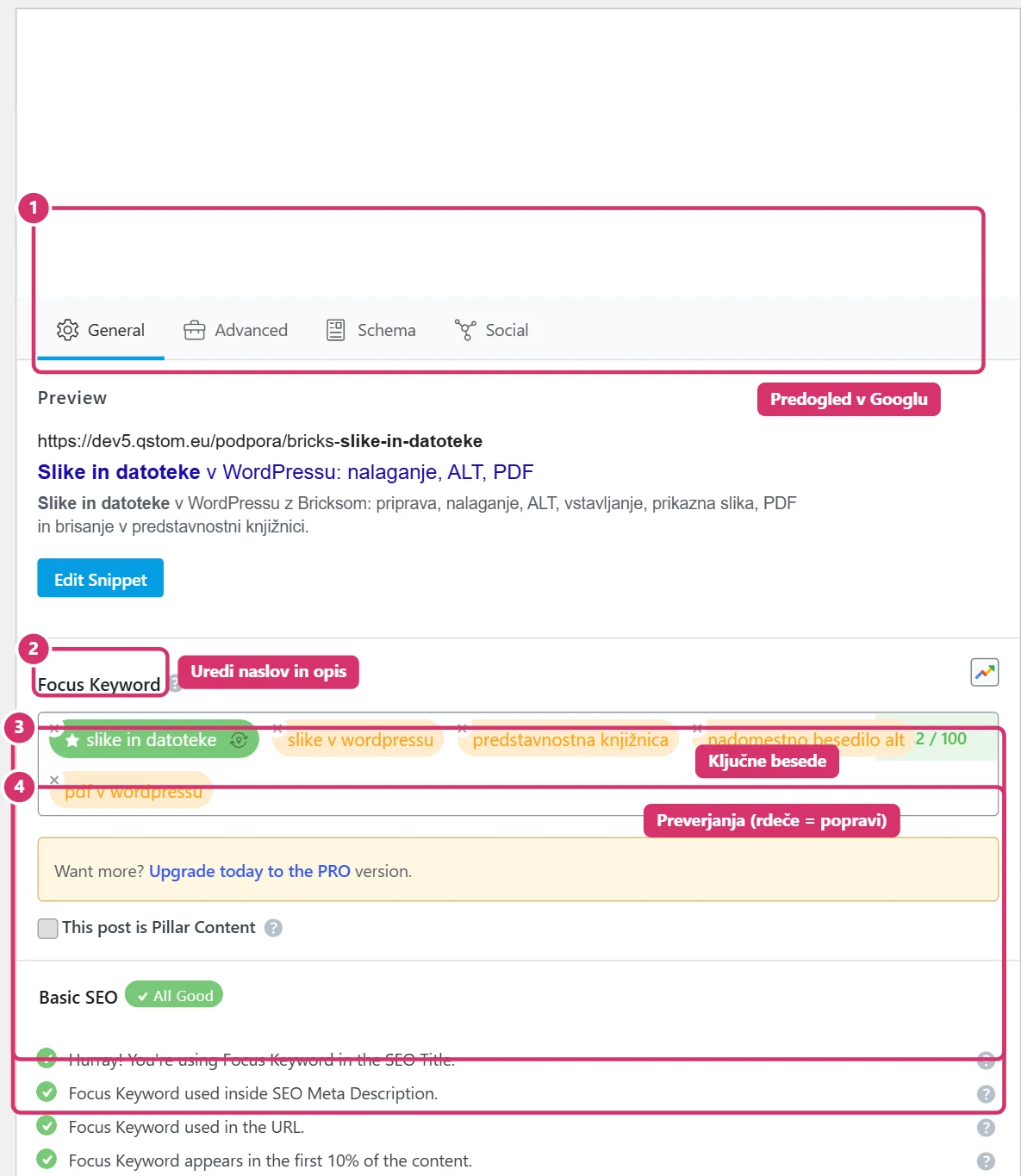
- Below the editor (the Rank Math SEObox) on every page, post and product. The box has the tabs General, Advanced, Schema and Social. In Bricks, you’ll also find it in the builder sidebar (the Rank Math icon).
- In the content list (Pages, Posts, Products) in the SEO Detailscolumn, where the score is shown.
The Rank Math interface is in English, so the fields in this guide are given their English names.
3. Keyword
The keyword is the phrase people should find you by, e.g. home coffee machine or employment law solicitor. Rules:
- One keyword per piece of content. Two pages with the same keyword compete with each other.
- Choose a phrase customers actually use, not an internal product name.
- Enter it in the Focus Keyword field and confirm with a comma or Enter. Extra keywords (related phrases) are less important.
- The keyword should appear naturally in the title, the URL, the first paragraph, one of the subheadings and an image’s ALT text. Don’t force repetition.
4. SEO title, URL and description
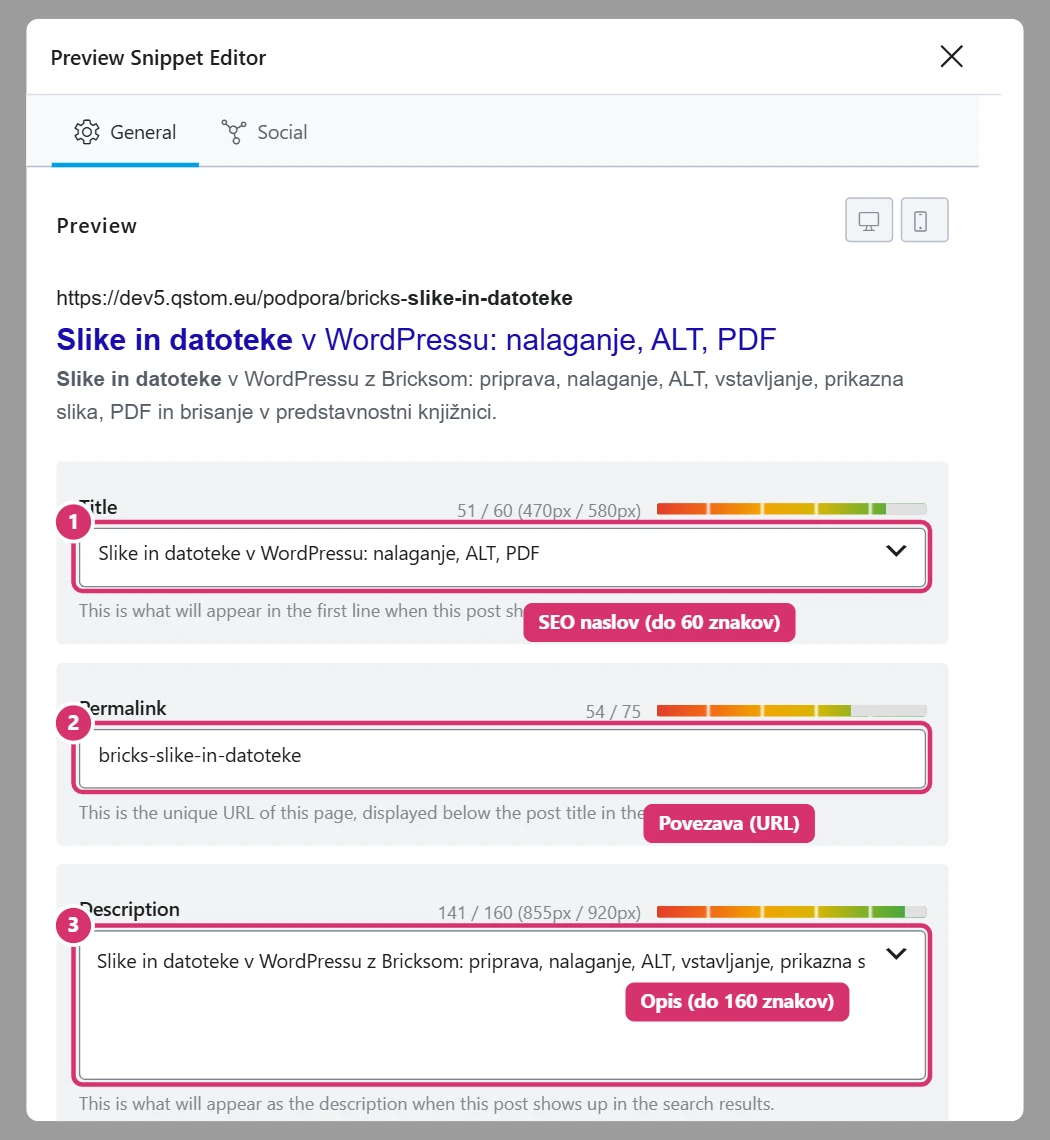
On the General tab, click Edit Snippet. A window opens with a preview of how the content will look in Google:
- Title (SEO title) – up to 60 characters, with the keyword as near the start as possible. Start with the essentials, not the company name. The coloured bar above the field shows if the title is too long.
- Permalink (URL) – short, no accented letters, words separated by hyphens (e.g.
home-coffee-machine). Don’t change the URL of a published page without checking with us, as the old address will break. - Description – up to 160 characters. Write 1–2 sentences that persuade the reader to click. Include the keyword and a compelling reason (a benefit or offer).
If you don’t fill in the fields, Rank Math uses a default pattern (page title and excerpt), but a hand-written title is almost always better.
5. Score and checklist
Below the keyword field is a checklist split into Basic SEO, Additional, Title Readability and Content Readability. A green tick means done, red means an error and orange a recommendation. The most important:
- The keyword is in the SEO title, the description, the URL and the first part of the text.
- The text has enough words (at least 300 recommended, fewer for products).
- The content has subheadings, short paragraphs and at least one image with ALT text.
- The content contains internal links (to other pages on your website) and at least one external link.
A score above 80 is green. Don’t chase points at any cost: if a rule doesn’t suit the content (e.g. a short product), you can ignore it.

6. The Advanced and Social tabs
You usually don’t change these settings, but it’s good to know them:
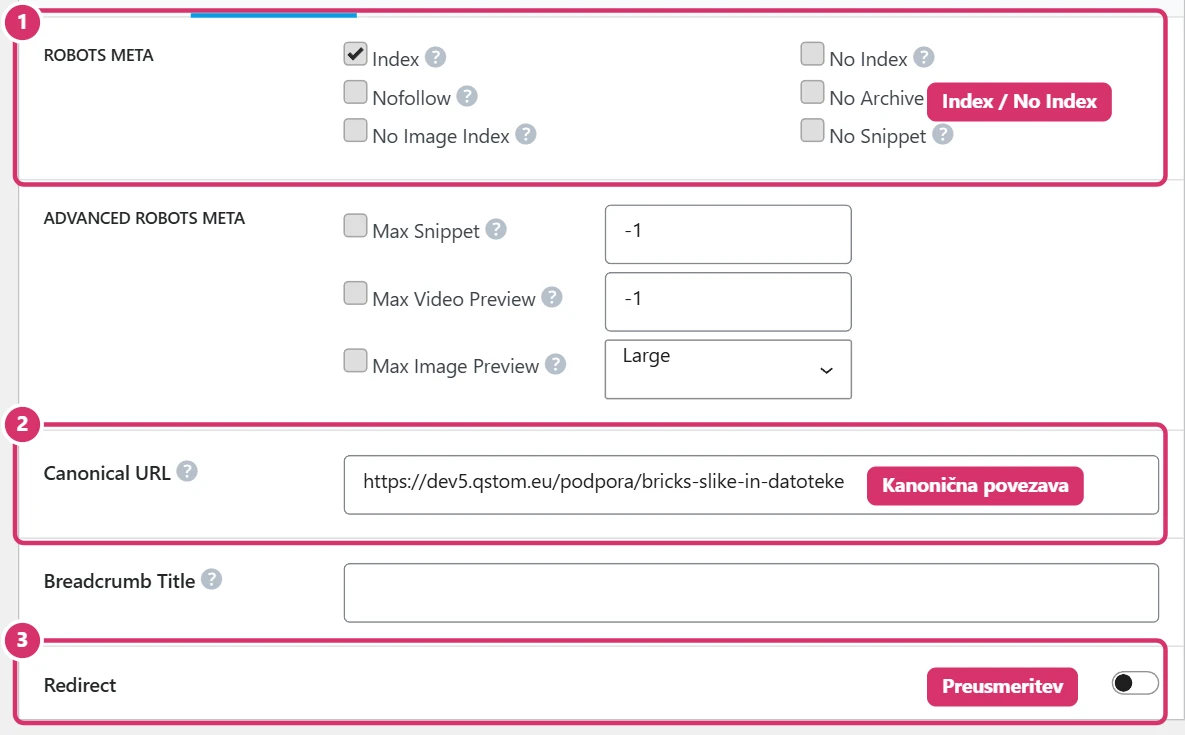
- Robots Meta – Index means the content can appear in Google. No Index hides the content from search engines (useful for internal or test pages, e.g. a thank-you page). For public content, it must stay Index.
- Canonical URL – tells Google which is the original version of similar pages. It’s usually empty.
- Redirect – redirects the page to another address. We set up redirects, to avoid errors.
- Social – the title, description and image shown when shared on Facebook or LinkedIn. If nothing is entered, the SEO data and featured image are used.
7. Good writing practice
- H1 heading – only one per page, with the keyword. In Bricks, this is the Heading element with the H1 tag.
- H2, H3 subheadings – split the text into sections; use the keyword in one of them.
- Images – a descriptive file name, alternative text (ALT) and the right size (see the guide Bricks – Images and files).
- Internal links – link related pages, products and posts with clear link text (not “click here”).
- Products and categories – each product should have its own description, not copied from the manufacturer; Google rates duplicate text lower.
- Speed – small images and few unnecessary videos speed up the website, which also helps with search engines.
8. Notes for Yoast SEO
On websites where we use Yoast SEO (e.g. Peak), the tasks are the same, but it looks different:
- The Yoast SEO box is below the editor, with the tabs SEO and Readability.
- The focus keyphrase is entered at the top of the SEO tab.
- You edit the SEO title,, slug and meta description in the Google preview section. The limits are the same: up to 60 and up to 160 characters.
- The score is a traffic light: green is good, orange acceptable, and red means something needs fixing. The Advanced settings (e.g. noindex, canonical URL) are the same as in Rank Math.